PolyPlan - Google Calendar Integration
Written By Minh Thư
Last updated Over 1 year ago
How it works
The integration between PolyPlan and Google Calendar will sync the events created in your Google Calendar with the following information:
Event title as the event name
Start date & time as start time
End date & time as end time
Location
Sub-calendar

Steps to connect
On the website app
Navigate to the left sidebar, and click on + Add…
Hover on Account and choose the Google Calendar option
Sign into your Google account and grant the required access permission
Name your integration and choose the calendars to sync, then click Done
On the phone app
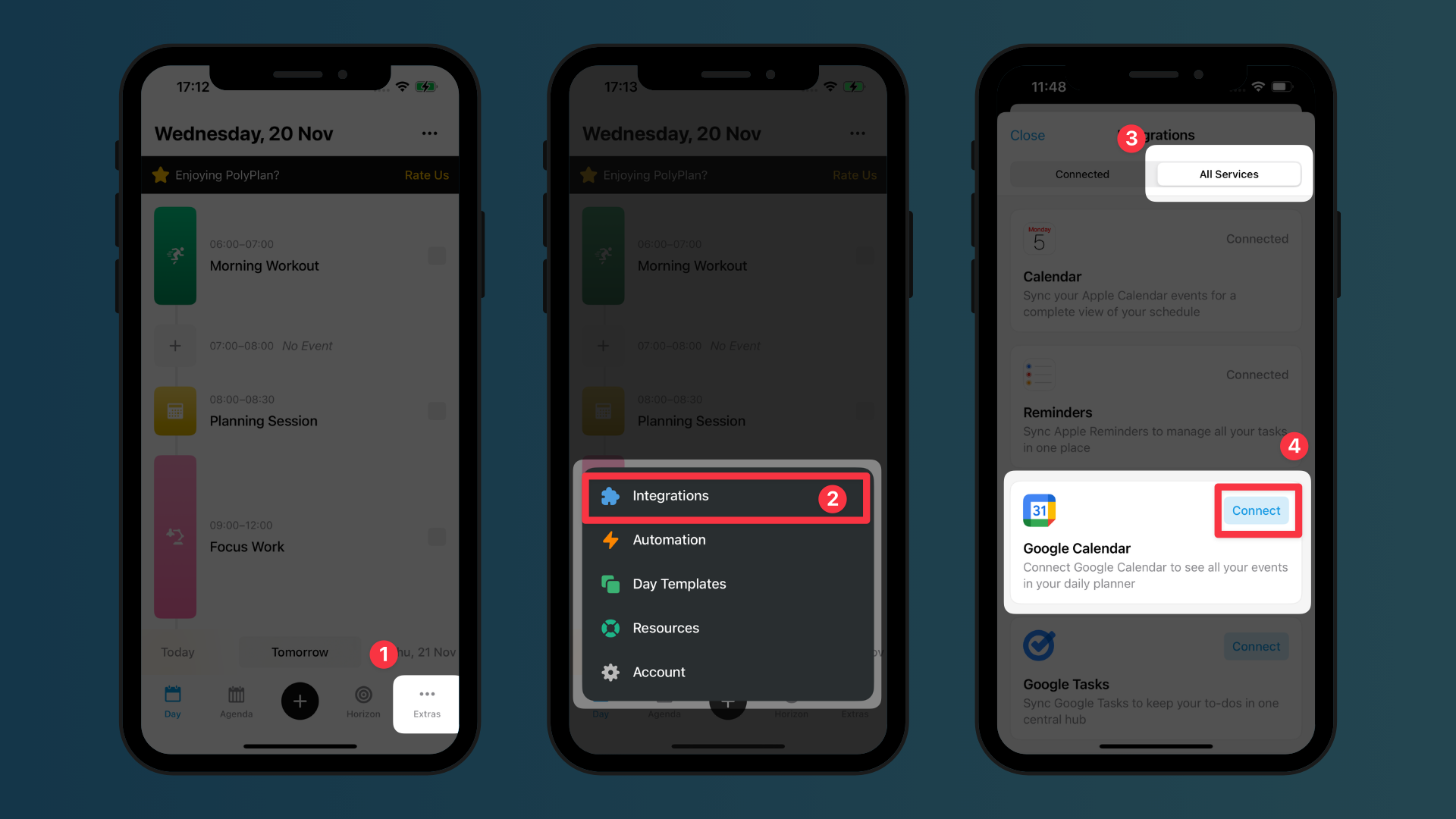
Navigate to the bottom menu bar, tap on Extras, and choose Integrations
In All Services, find Google Calendar, and tap the button Connect
Sign into your Google account and grant the required access permission
Name your integration and choose the calendars to sync, then tap on Save
Important Notes
Both personal and work accounts are supported for the integration
If you have several Google accounts, you can set an integration for each of them. Make sure to name them distinguished for your easy management.
This integration only syncs the events in your Google Calendar. To sync your tasks, please use the integration with Google Tasks.
All-day events will be displayed on the top of the daily timeline.
In Google Calendar, each calendar can have its time zone. If it is different from the timezone of your device, when events sync to PolyPlan, the date and time of the events will change based on your device's time zone. This can lead to differences in the date and time of events between Google Calendar and PolyPlan.
For events synced from Google Calendar, there will be no checkbox. Once the time of the event ends, it will be greyed out when being viewed on the phone app.
Actions to edit or delete events should be made in the Google Calendar app.
Was this helpful?
Still need help? Share an idea