PolyPlan - Notion Integration
Written By Minh Thư
Last updated Over 1 year ago
How it works
The integration between PolyPlan and Notion will sync all the fields of a notion page included in the synced database.
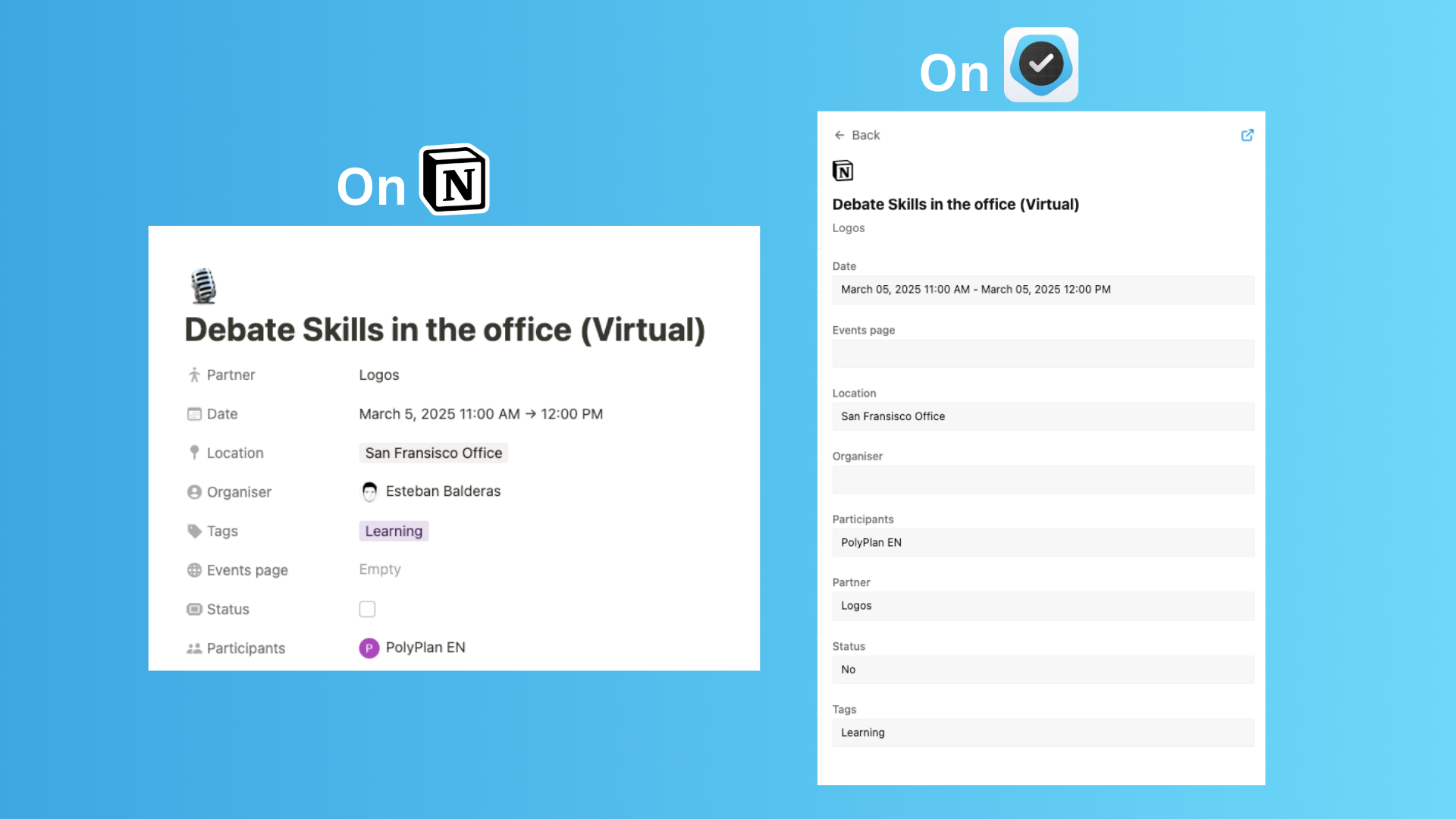
Steps to integrate
Prerequisites
This integration supports the synchronizations of tasks & events in a database. See the definition of database in What is Database?
Your database must have at least 1 column to be available for the synchronization
Your database may or may not have a column with type Checkbox, still, it is useful for the check on the completion of the tasks.
On website app
Navigate to the left sidebar, and click on + Add…
Hover on Account and choose the Notion option
Sign into your Todoist account, choose workspace, and click button Select Pages
Choose pages and click Allow Access
Name your integration
Click + Add Database, then choose the Column Date (required) & Completion Column (optional)
Click Save to start your integration
On mobile app
Open PolyPlan app
Navigate to the bottom menu bar, and tap the Extras tab, then select Integration.
In the All Services category, find Notion, then tap on the button Connect.
Sign into your Todoist account, choose workspace, and click button Select Pages
Choose pages and click Allow Access
Name your integration
Click + Add Database, then choose the Column Date & Completion Date
Click Save to start your integration
Important Notes
We now still recommend you to set the date & time of your Notion's items within a day. Here's how it works:
Start date is available, not included time: sync the item as the task/event the start date, default time is 00:00; default duration is 15 minutes on website app, 30 minutes on Android app, and none shown on iOS app.
Start date is available, included time: sync the item as the task/event with the same the start date and time; default duration is 15 minutes on website app, 30 minutes on Android app, and none shown on iOS app.
Start date and end date is available and the same, not included time: sync the item as task/event that starts and ends at the same date and same default time as 00:00.
Start date and end date is available and the same, included time: sync the item as task/event with the same start date & time and end date & time.
The update from Notion will be synced directly to PolyPlan, while the other way will take about 2 minutes.
If there is a completion column, Notion's items will be synced as tasks. Otherwise, they will be synced as events. Read more Task vs. Event.
If you remove the Column date from the Database in Notion, all tasks and events will be no-date tasks. You can see them only by clicking in All Accounts > [Notion integration] > View on the right sidebar. You cannot drag & drop those tasks to any of the main views.
The deletion of the Notion's database will remove all tasks & events that have been synced to PolyPlan.
Was this helpful?
Still need help? Share an idea