Manage integrations (phone version)
Written By Minh Thư
Last updated Almost 2 years ago
Service category
On the iOS app, PolyPlan supports you to connect and sync tasks and events from the following apps:
Apple Calendar, Apple Reminders
Google Calendar, Google Tasks
Microsoft Outlook, Microsoft Todo
Things
Todoist
Connect to an app
Open PolyPlan app
Navigate to the bottom menu bar, and tap the Extras tab, then select Integration.
In the All Services category, find the app you want to connect and sync tasks and events, then tap on the button Connect.
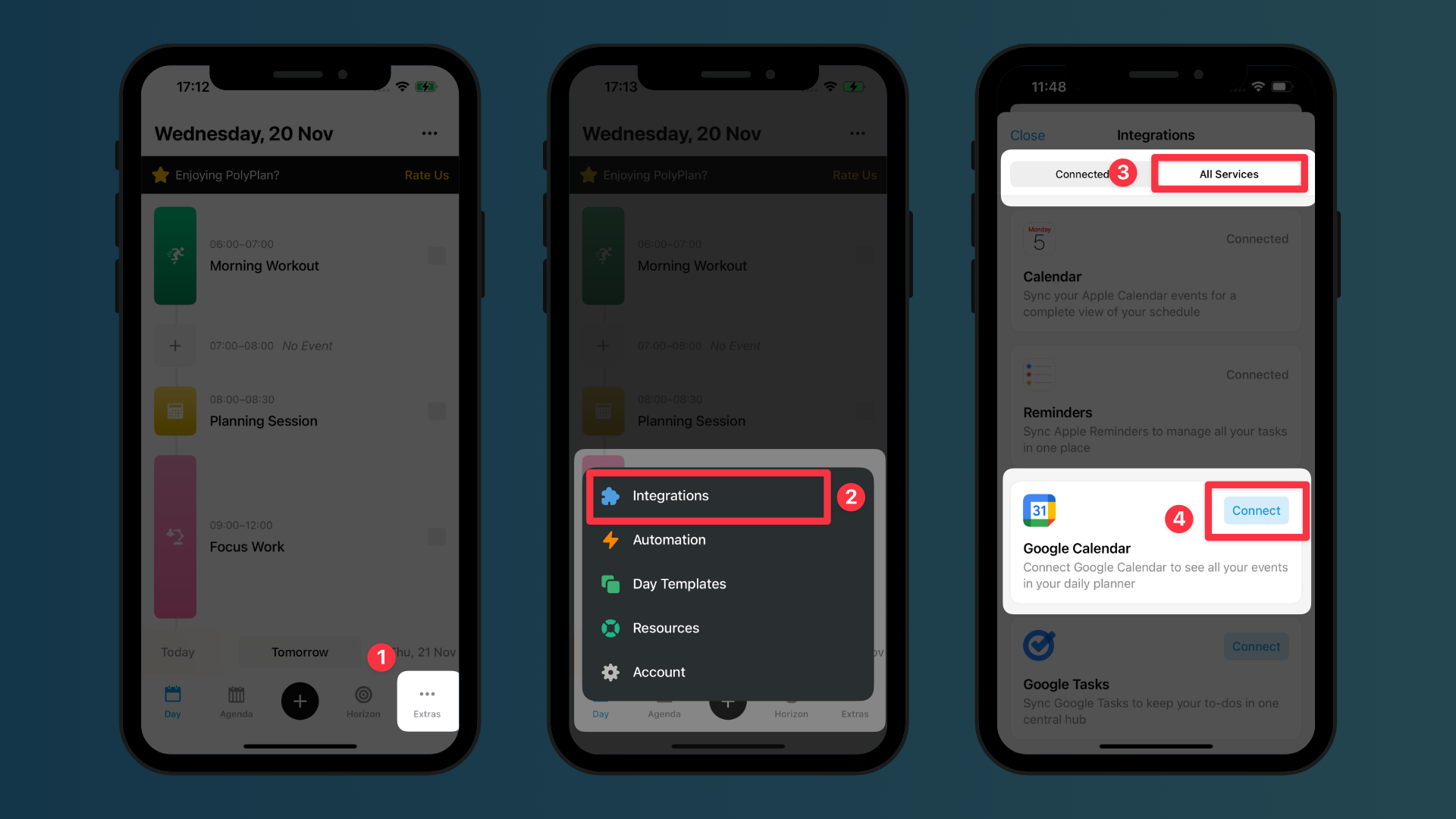
Do the authentication required by the service provider.
Choose the list of tasks and events you want to sync. For the Calendar app, you can choose events and tasks from which calendars to connect and sync.
Tap Save on the top right corner to save the integration.
For Google Calendars and Google Tasks, you can set up different integrations for your different Gmail accounts. Therefore, make sure you name each integration distinguished for your easy management.
Manage integrations
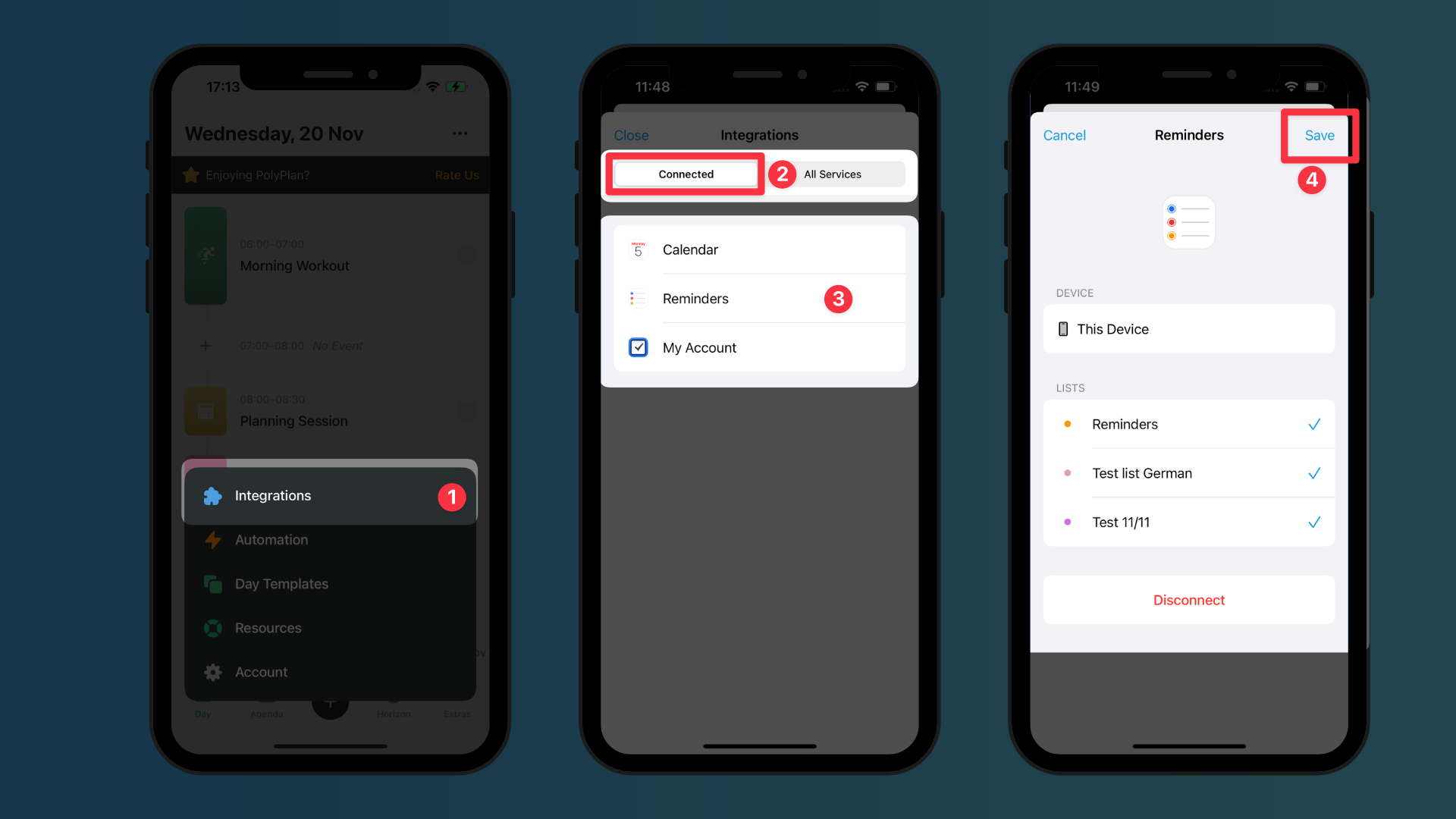
To modify your integration settings:
Go to Extras > Integration
Select the Connected category
Tap on the integration you want to manage
Adjust the configuration of the integration as you prefer
Tap the Save button to save your changes
Disconnect an integration
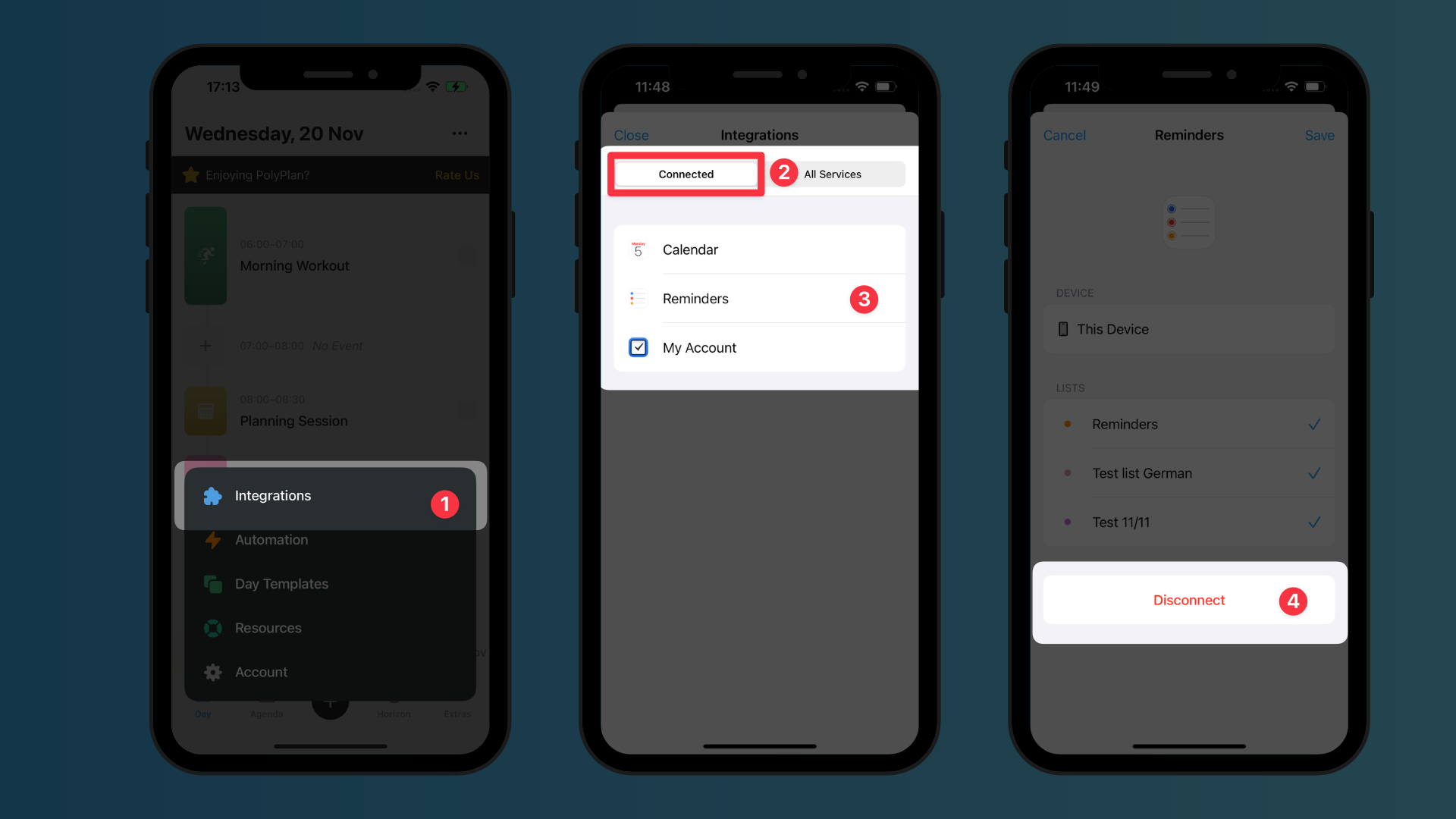
To remove an integration:
Go to Extras > Integration
Select the Connected category
Tap on the integration you want to remove
Scroll to the bottom
Tap the Disconnect button
Was this helpful?
Still need help? Share an idea