PolyPlan - Todoist Integration
Written By Minh Thư
Last updated Over 1 year ago
Steps to integrate
On website app
Navigate to the left sidebar, and click on + Add…
Hover on Account and choose the Todoist option
Sign into your Todoist account and grant the required access permission
Name your integration and choose the calendars to sync, then click Done
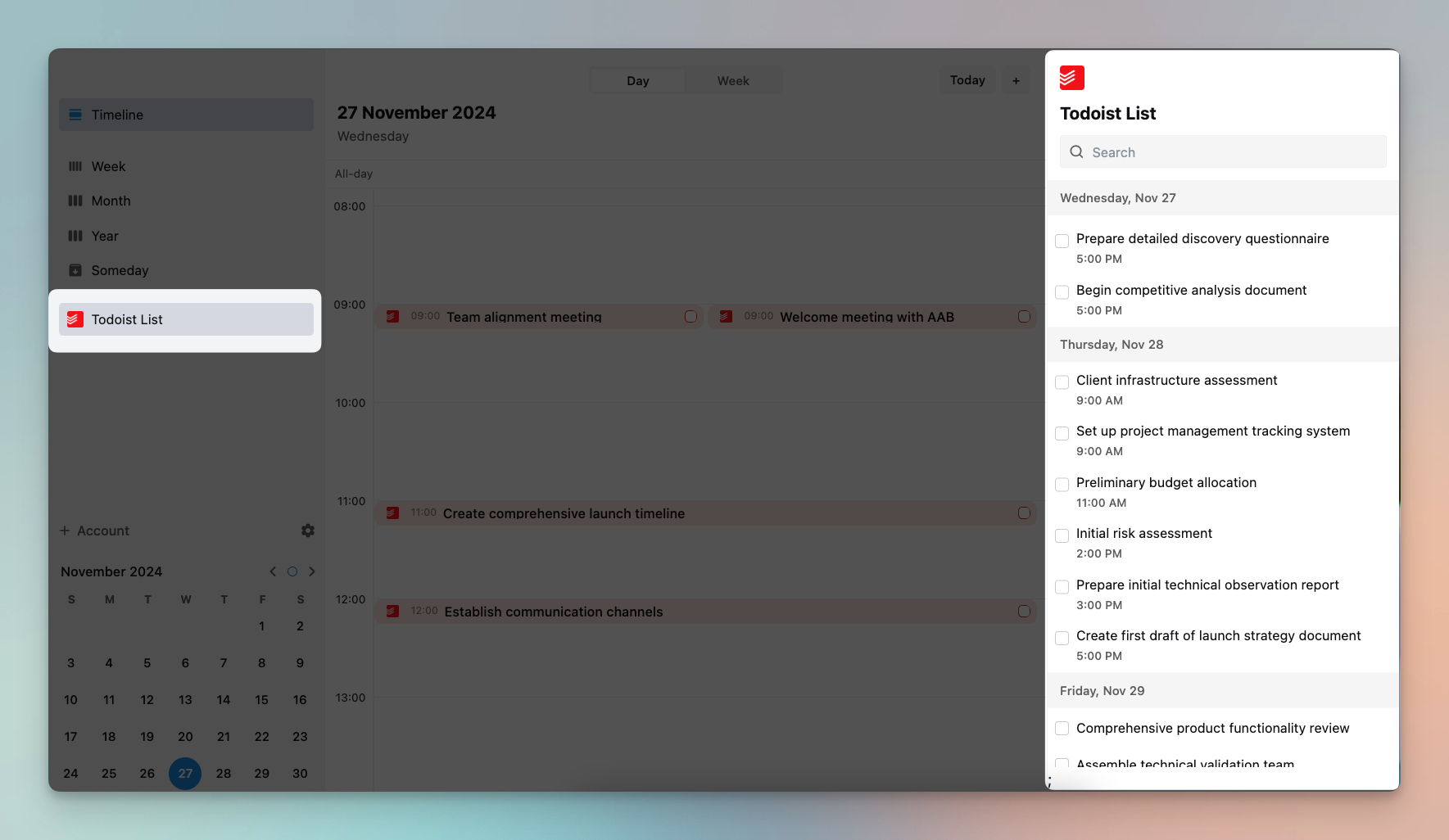
You can see the integration on the left sidebar. Click the integration to see all the Todoist tasks synced in a separate list.
On phone app
Open PolyPlan app
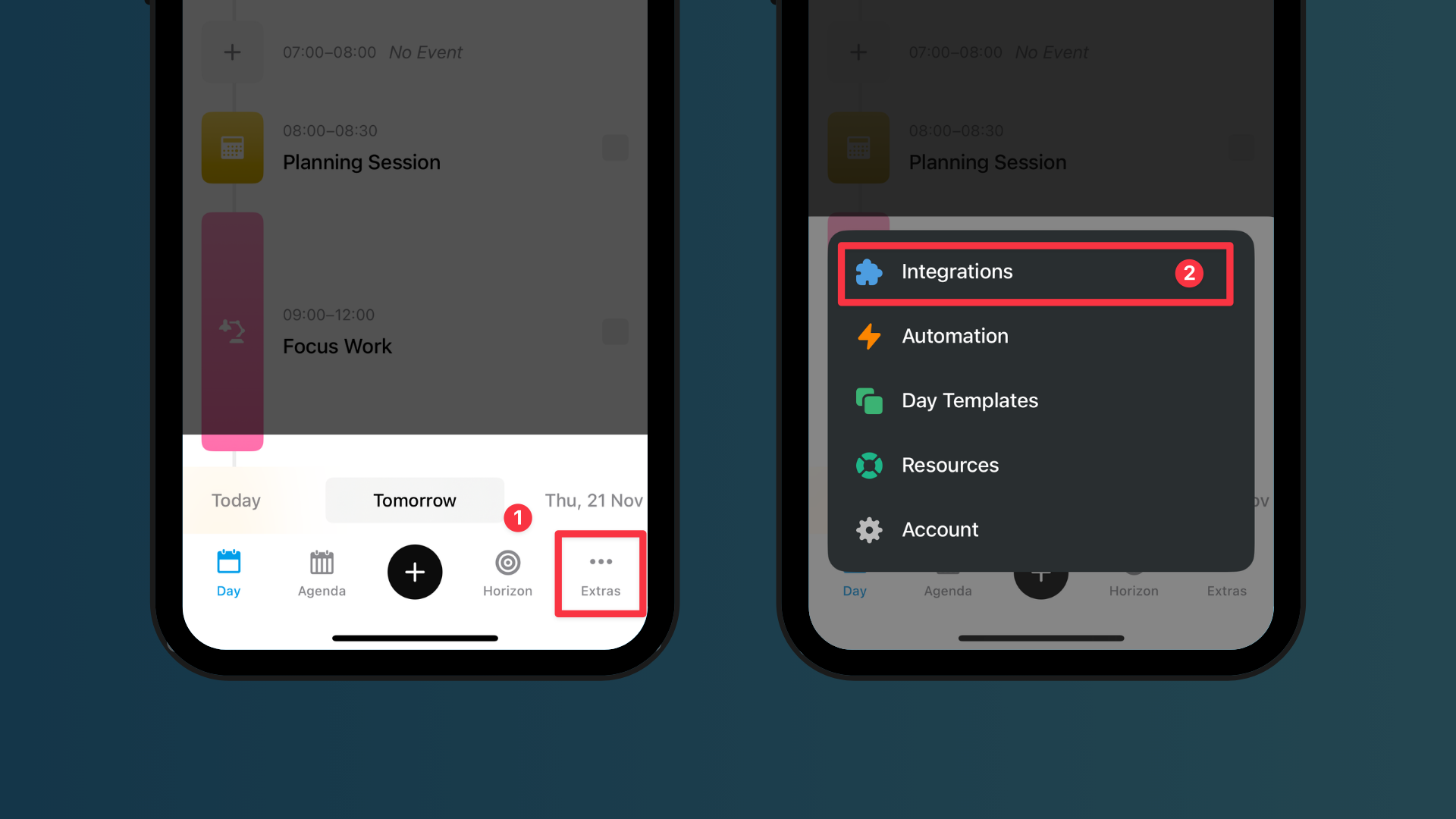
Navigate to the bottom menu bar, and tap the Extras tab, then select Integration.
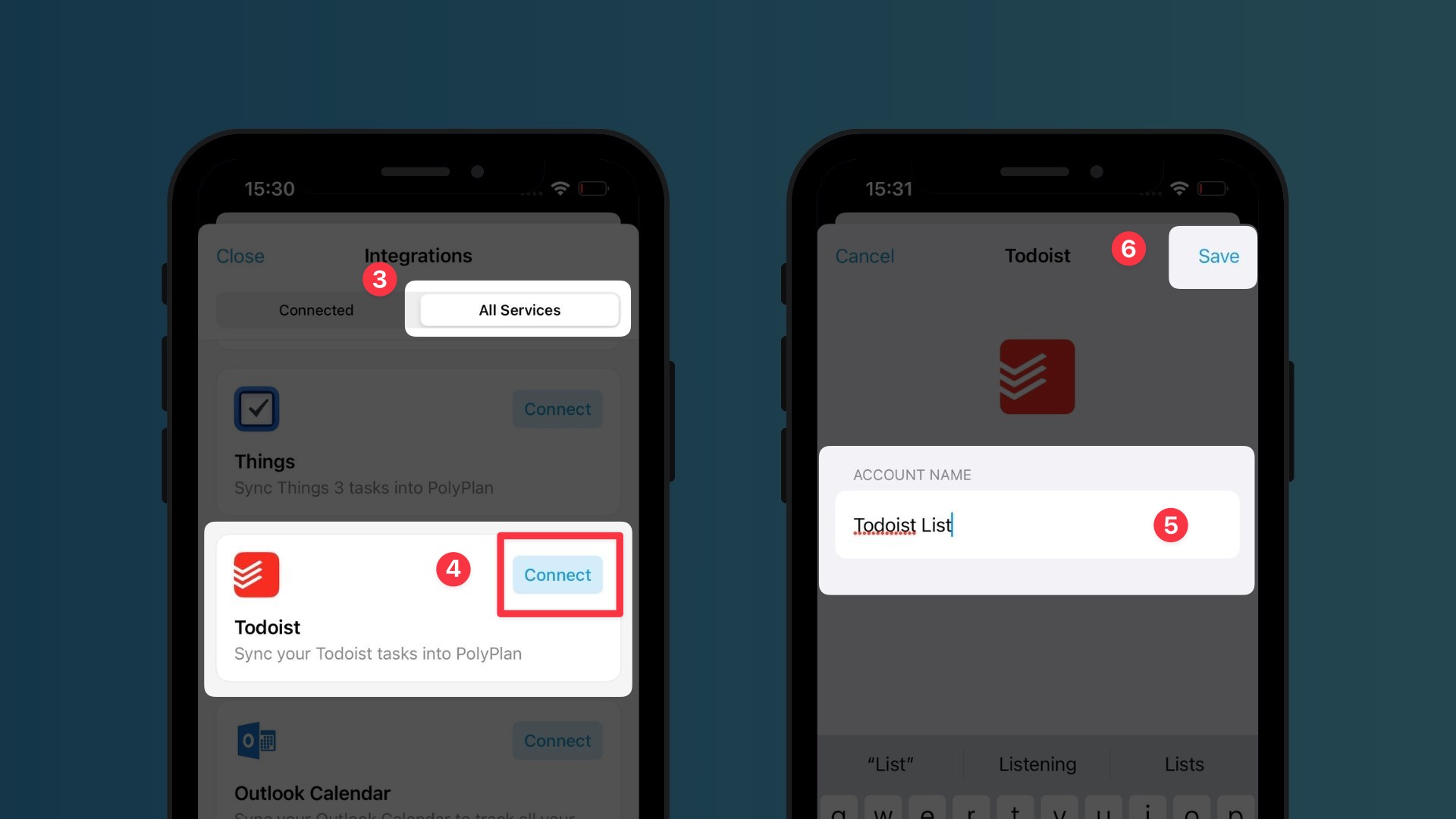
In the All Services category, find Todoist, then tap on the button Connect.
Name your integration, then tap on Save
Important Notes
If you have several Todoist accounts, you can set up an integration for each of them. Make sure you name the integrations that can help you easily manage.
Sub-tasks in Todoist are synced as separate tasks, like their parent tasks. Therefore, make sure you assign a date & time for the sub-task in Todoist as well.
All tasks are synced regardless of their status before the integration starts.
To edit or delete a task or sub-task, you edit or delete it from Todoist by
going to the Todoist app, or
tapping the task in PolyPlan
You can change the duration of tasks synced from Todoist.
The reminders of your event are not synced. The main point of this integration is to help you manage all things in one place while not overwhelm you with reminders from both the source app and PolyPlan, so it's still Todoist that reminds you.
Was this helpful?
Still need help? Share an idea