PolyPlan - Apple Reminders Integration
Written By Minh Thư
Last updated Over 1 year ago
How it works
This will sync the following settings of the task set in the Reminder app:
title as task name
date as start date
time as start time
repetition, except the case where Frequency is Hourly
How it syncs date, time, and repeat
A task that is assigned date only, not time, is synced as an all-day event and cannot be marked Done
A task that is assigned a specific date & time is shown within the timeline of the day; its time will be the start time, and its default duration is 15 minutes.
The repetition of the task can be synced as well. Please note that, however, its repetition is prioritized over the date.
For example, if its date is Feb 11, 2025, on Thursday, while repetition is Weekends, its first appearance in PolyPlan will be Feb 16, 202,5 on the upcoming Sunday.
Steps to integrate
Open PolyPlan app
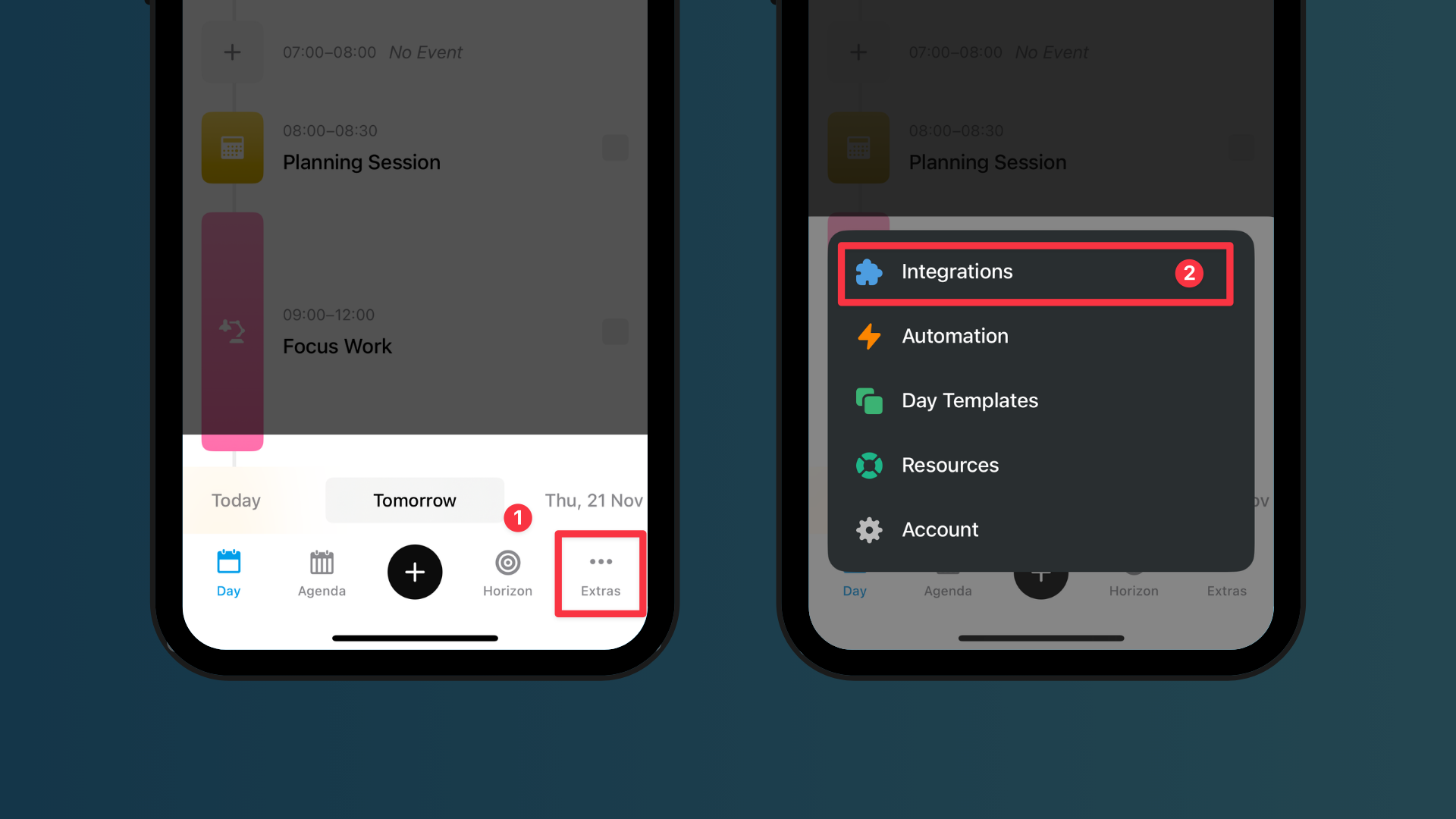
Navigate to the bottom menu bar, and tap the Extras tab, then select Integration.
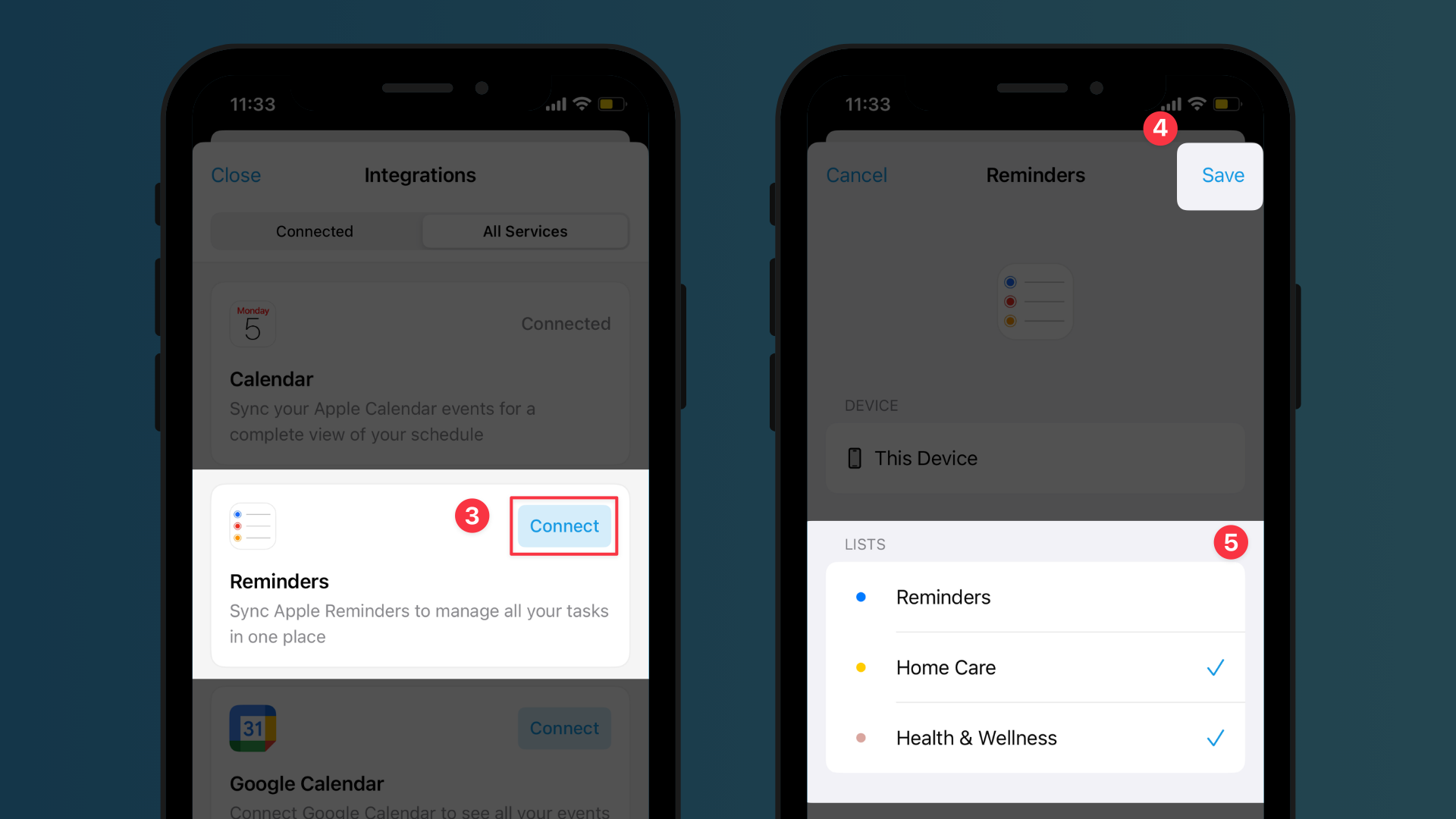
In the All Services category, find Reminders, then tap on the button Connect.
Choose the lists of tasks to sync, then tap on Save
Important Notes
This integration is only available for the iOS app on iPhones and iPads.
A task without date and time is not supported to view on the phone app, use the desktop and website versions (macOS app, window app, and website app) to see them.
To edit or delete a synced task, please go to the Apple Reminders app to make the update.
PolyPlan will not send the notification for the tasks synced from Reminders, to avoid duplication. You still need to set the task reminder in Reminder app.
Was this helpful?
Still need help? Share an idea