App Settings (web & desktop version)
Written By Minh Thư
Last updated Over 1 year ago
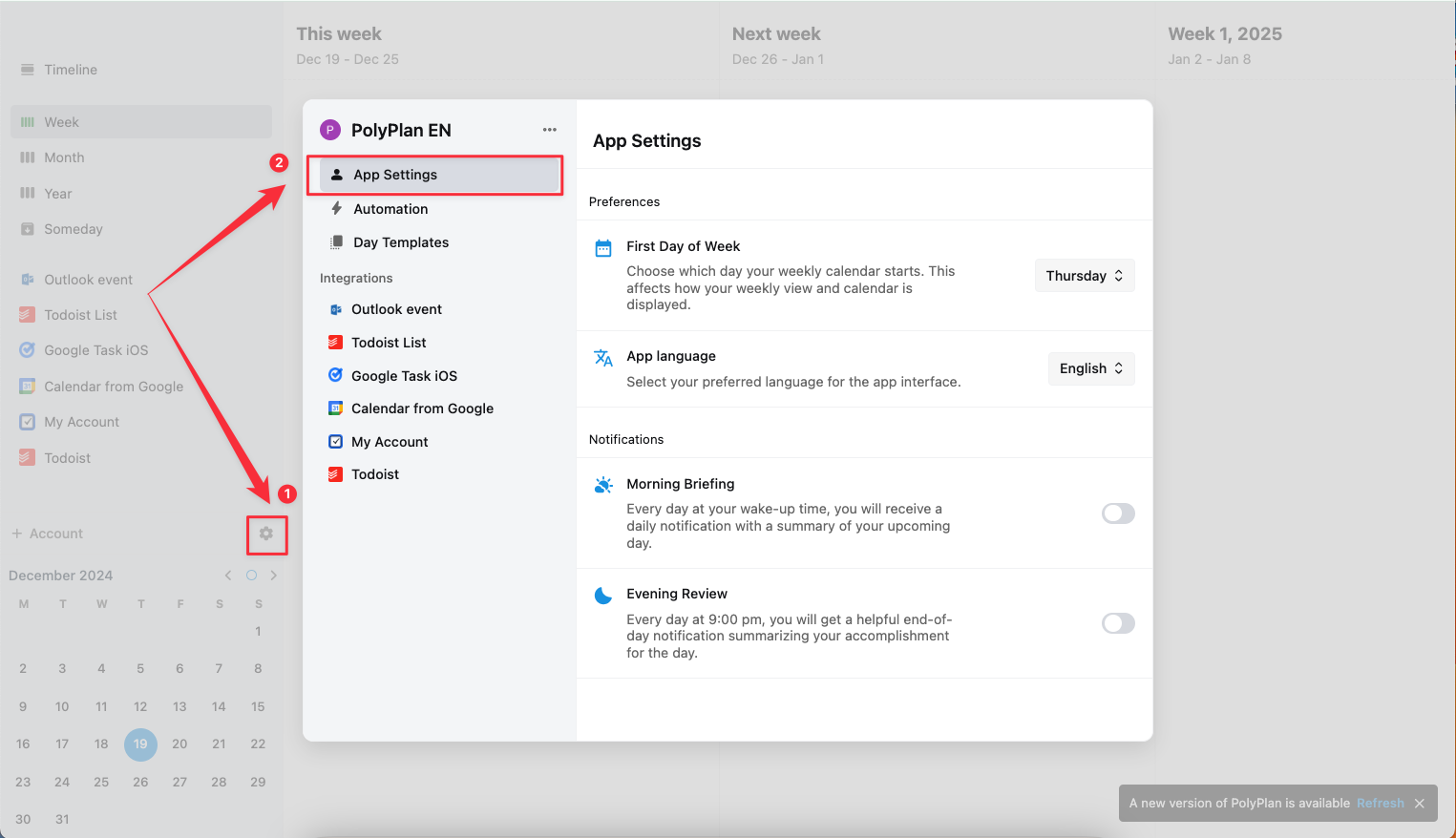
To access the App Settings and customize how PolyPlan works for your preference:
On the navigation sidebar, click on the Settings icon
Access tab App Settings
First Day of the Week
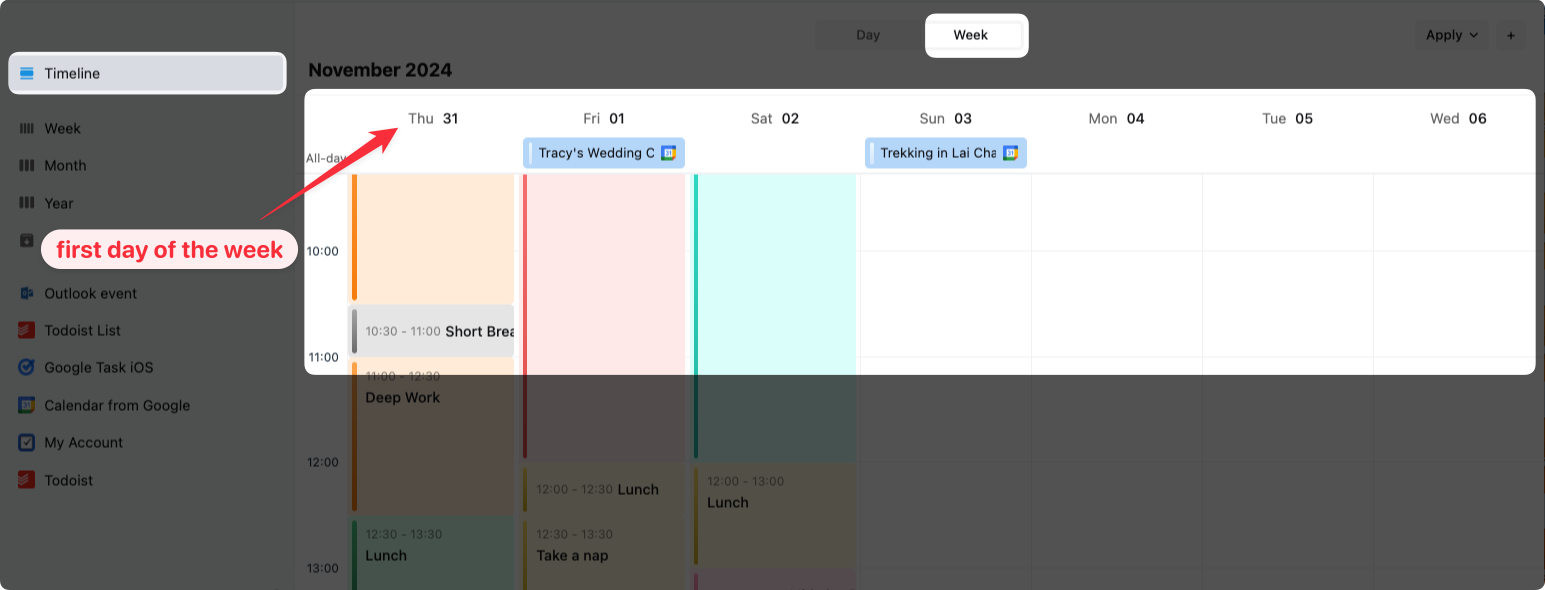
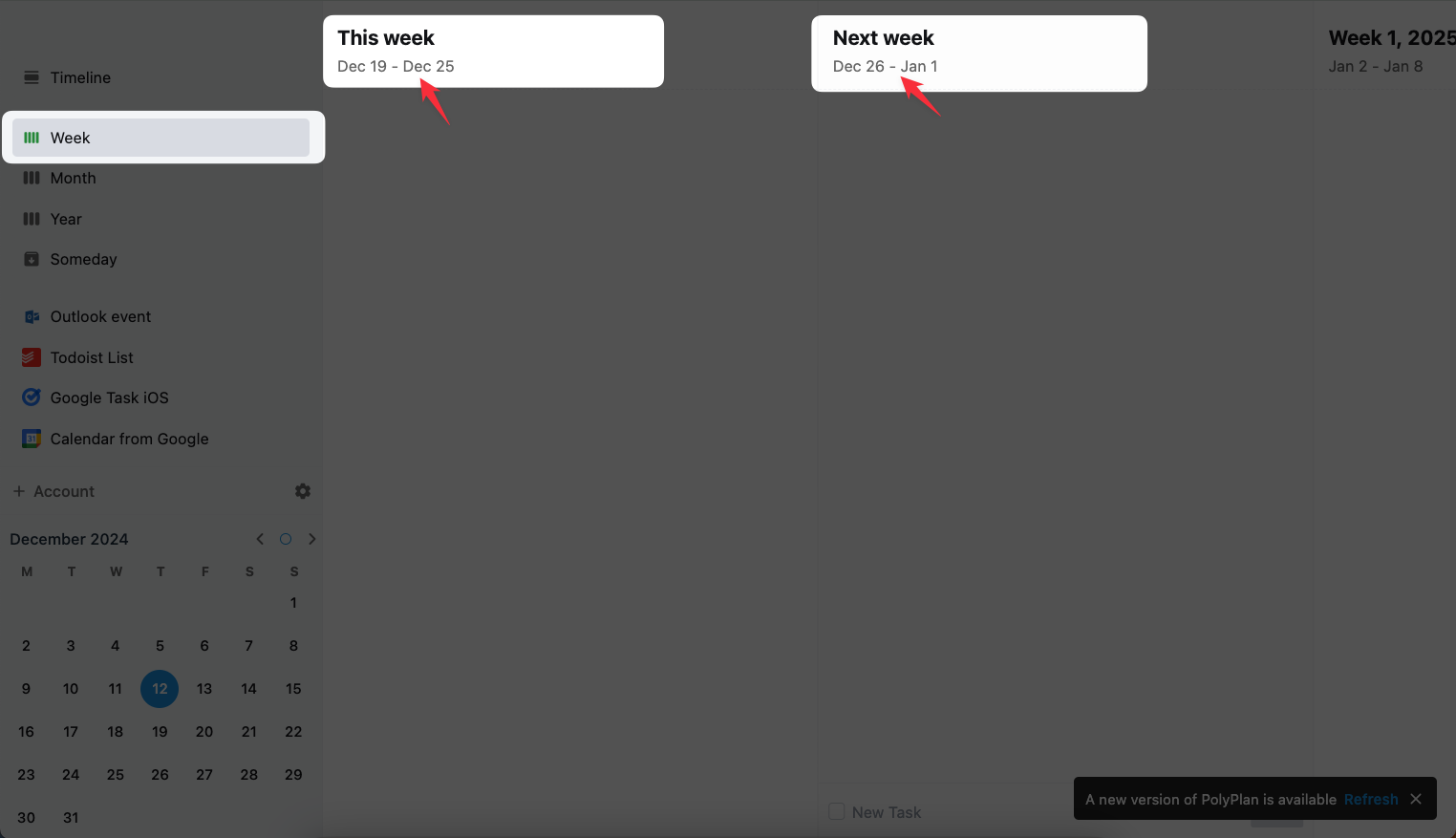
In the setting of the first day of the week, you will define on which day your new week starts.
This setting can change:
the first day in the week view of the Timeline, and
the date range of each week in the Week
App Language
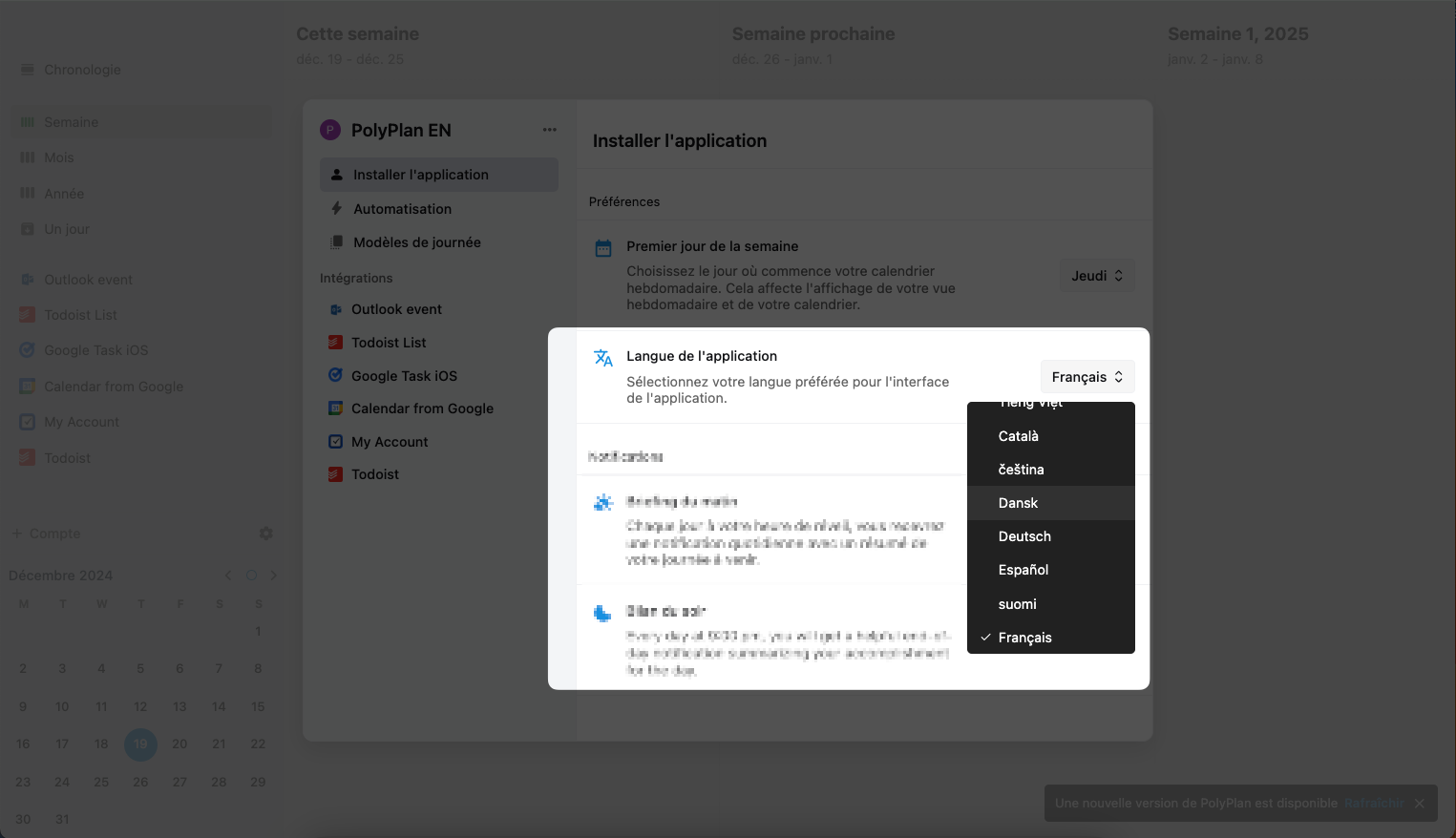
You can modify the language of the website app separately from the language of your browser and device.
Currently, PolyPlan is supported in over 30 languages.
You can contribute to the translation of PolyPlan in the public project on Crowdin
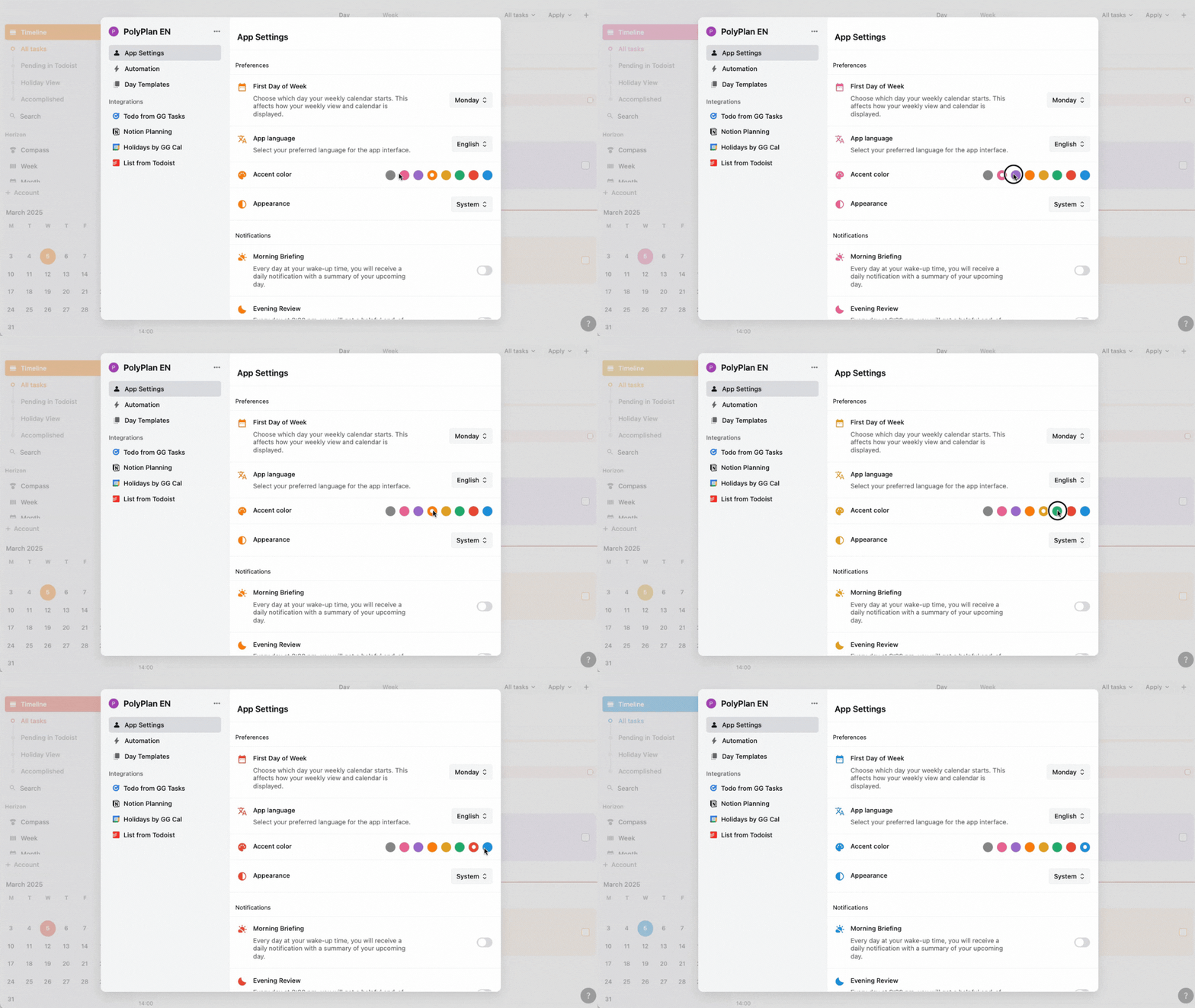
Accent color
When selected, this color dynamically influences key interface elements throughout the application, creating a cohesive and harmonious design.
Appearance
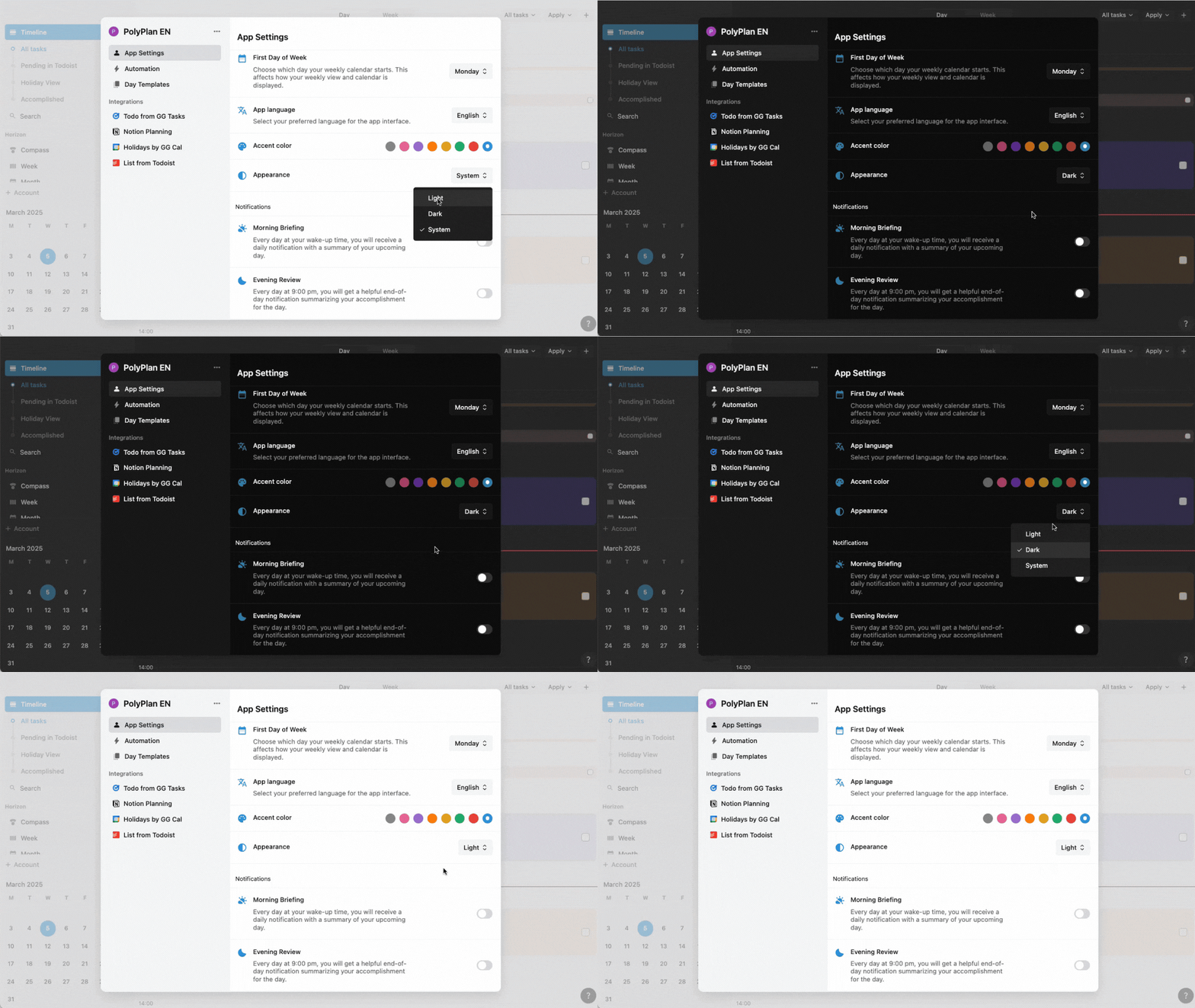
The Appearance settings give you control over the app's visual theme. Users can choose between three modes:
Light Mode: Bright background with dark text, ideal for well-lit environments
Dark Mode: Dark background with light text, reducing eye strain in low-light conditions
System Default: Automatically matches the device's current system-wide theme setting
Notifications
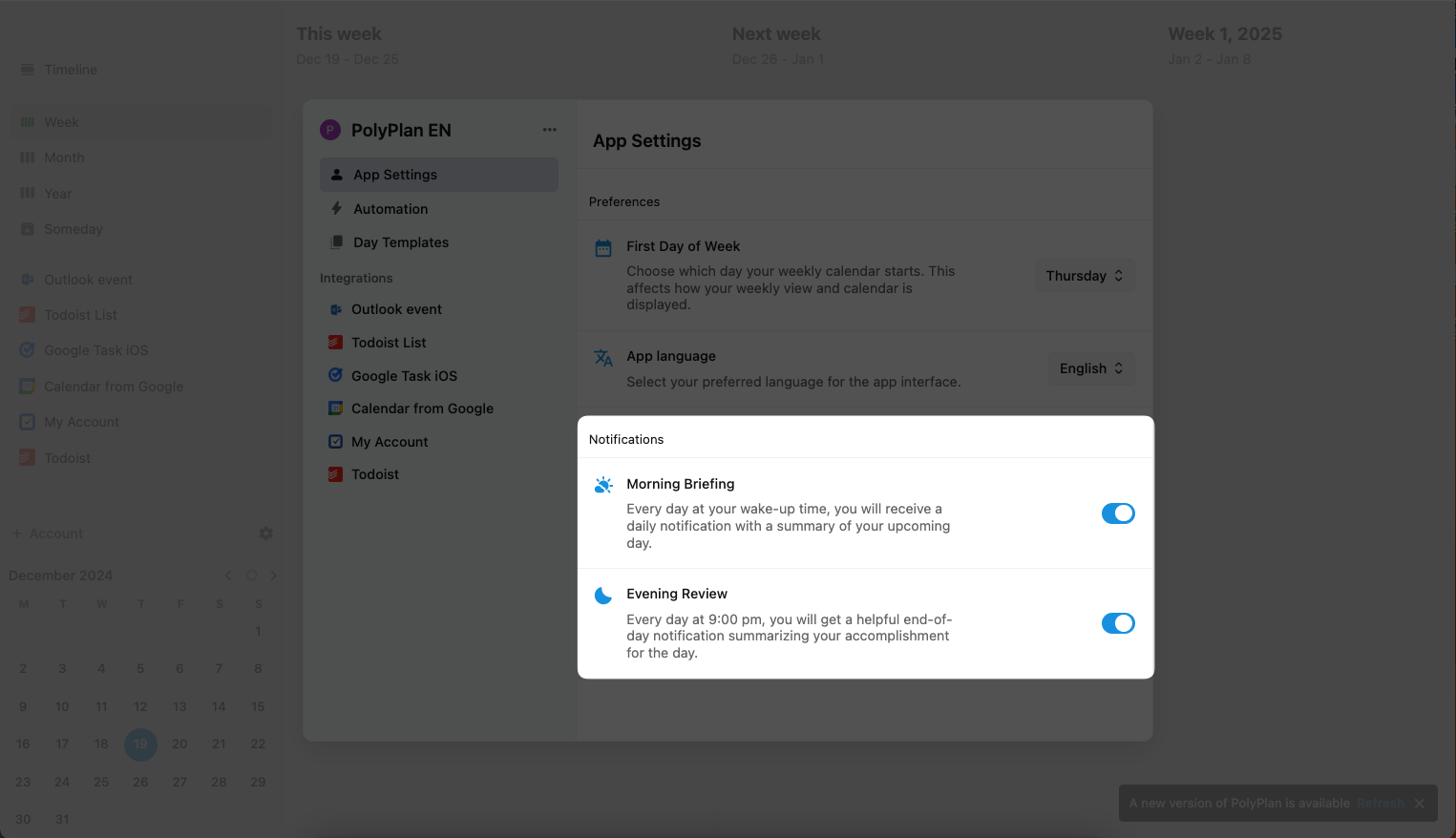
This setting of Notifications lets you control when you will get an overview of your day at the beginning and the end of the day.
The morning briefing will be sent to you by the time your wake up, which you can set in the Automation settings, while the evening briefing helps you wrap your day by 9 PM.
Was this helpful?
Still need help? Share an idea