Search & Filter view
Written By Minh Thư
Last updated Over 1 year ago
Search tasks & events
You can search your task by name, date, month, or year.
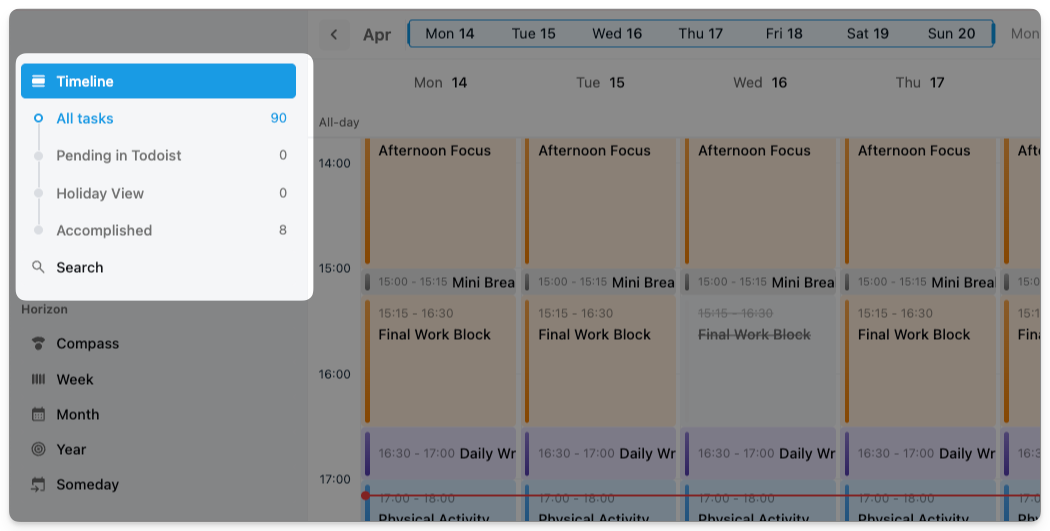
Click Search on the left sidebar or use the keyboard shortcut Ctrl + F (or Cmd + F on macOS). You will get the search space on the right sidebar.
The search tool is working only for the Timeline view
When you search by Date or Month, if you don't include the year, the search will automatically search for the current year only.
Dec 09 → Search tasks on Dec 09 of the current year
Dec 09, 2023, → Search tasks on Dec 09 of the year 2023
When you search by Month, write it in full. For example, use December instead of Dec.
Search by Month, without a specific date, will show the all-day events only.
Filter view
On website app
On the Timeline view, you also can create different views by filtering the tasks by their status and integrated app:
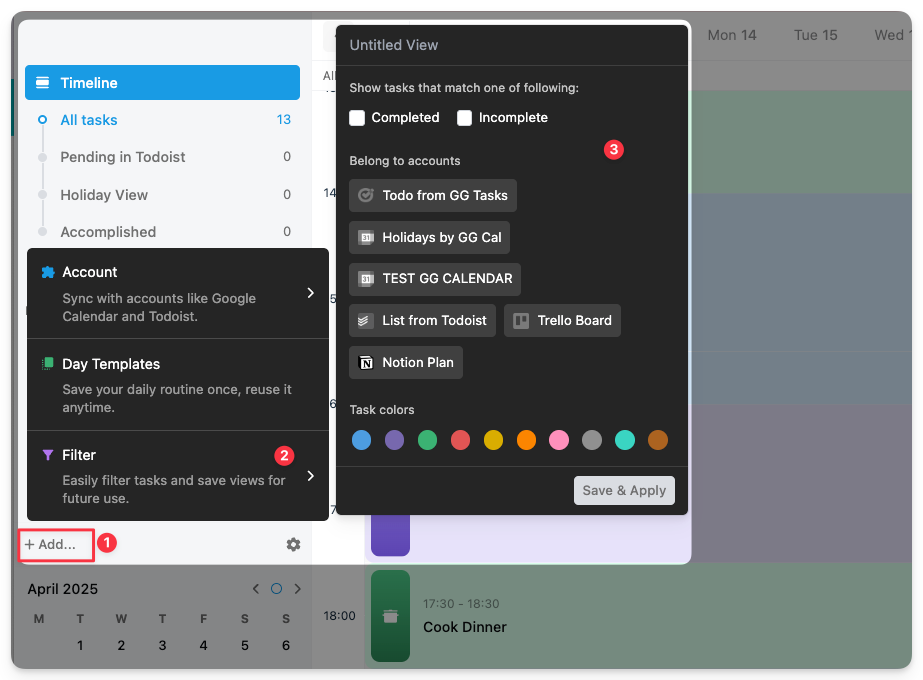
On the left sidebar, click + Add…
Hover on Filter, and configure to filter tasks & events by:
task's status
integration
task's color
Name your filter view, then click Save & Apply button
There is no option to filter the tasks that are created directly in PolyPlan yet.
The view is available for the Timeline view only.
All filter views that you create will appear on the left sidebar for your quick access, showing the number of tasks included in the filter view, counted for currently-viewing day or week.
On phone app
Start creating your view by these following steps:
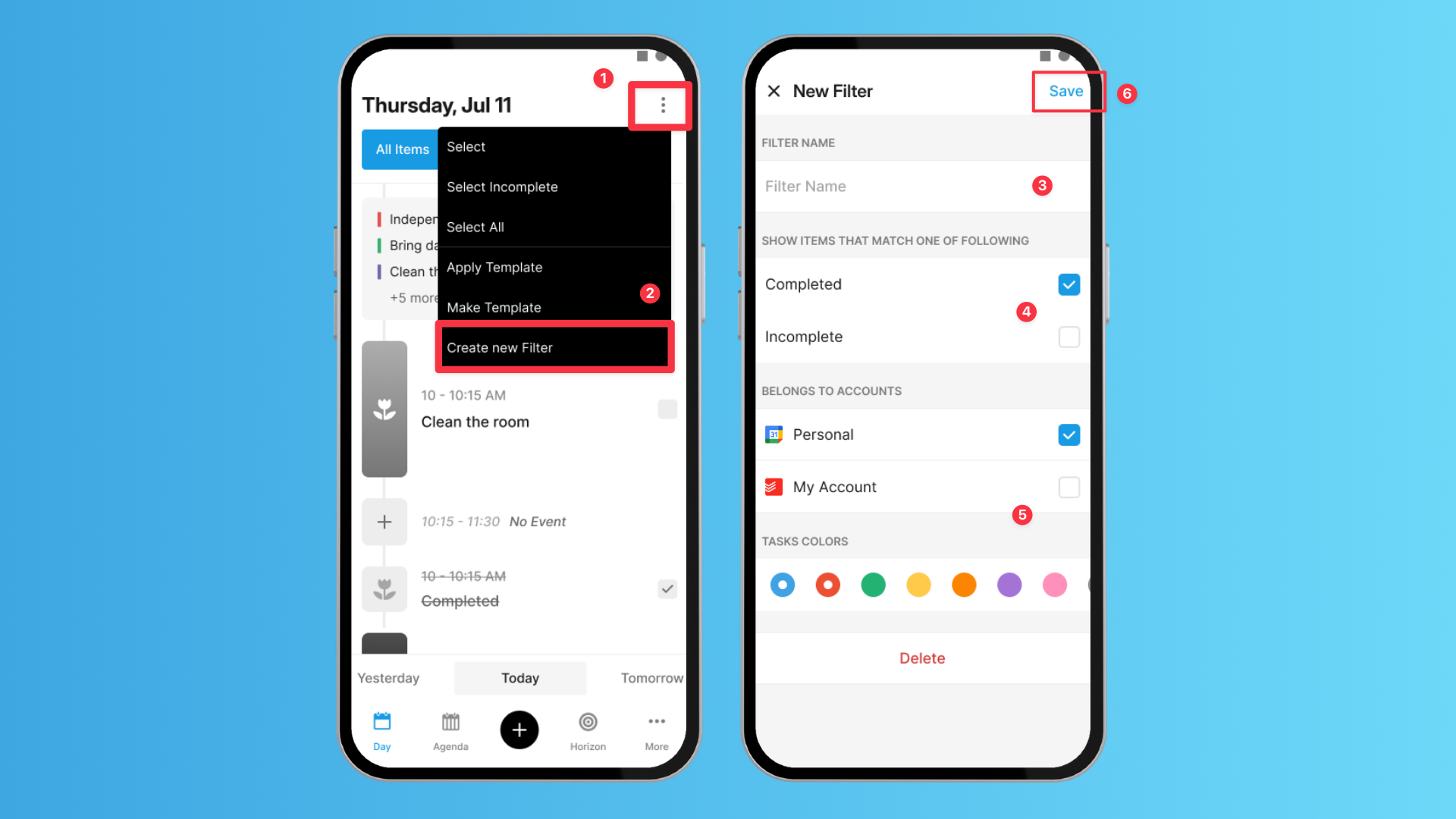
Tap on 3-dot button on the top right corner, and choose Create New Filter
Enter a name for the filter view
Choose the status that tasks of which will appear in the view
Choose tasks from integration and color of the tasks created in PolyPlan that are included in the view
Tap Save
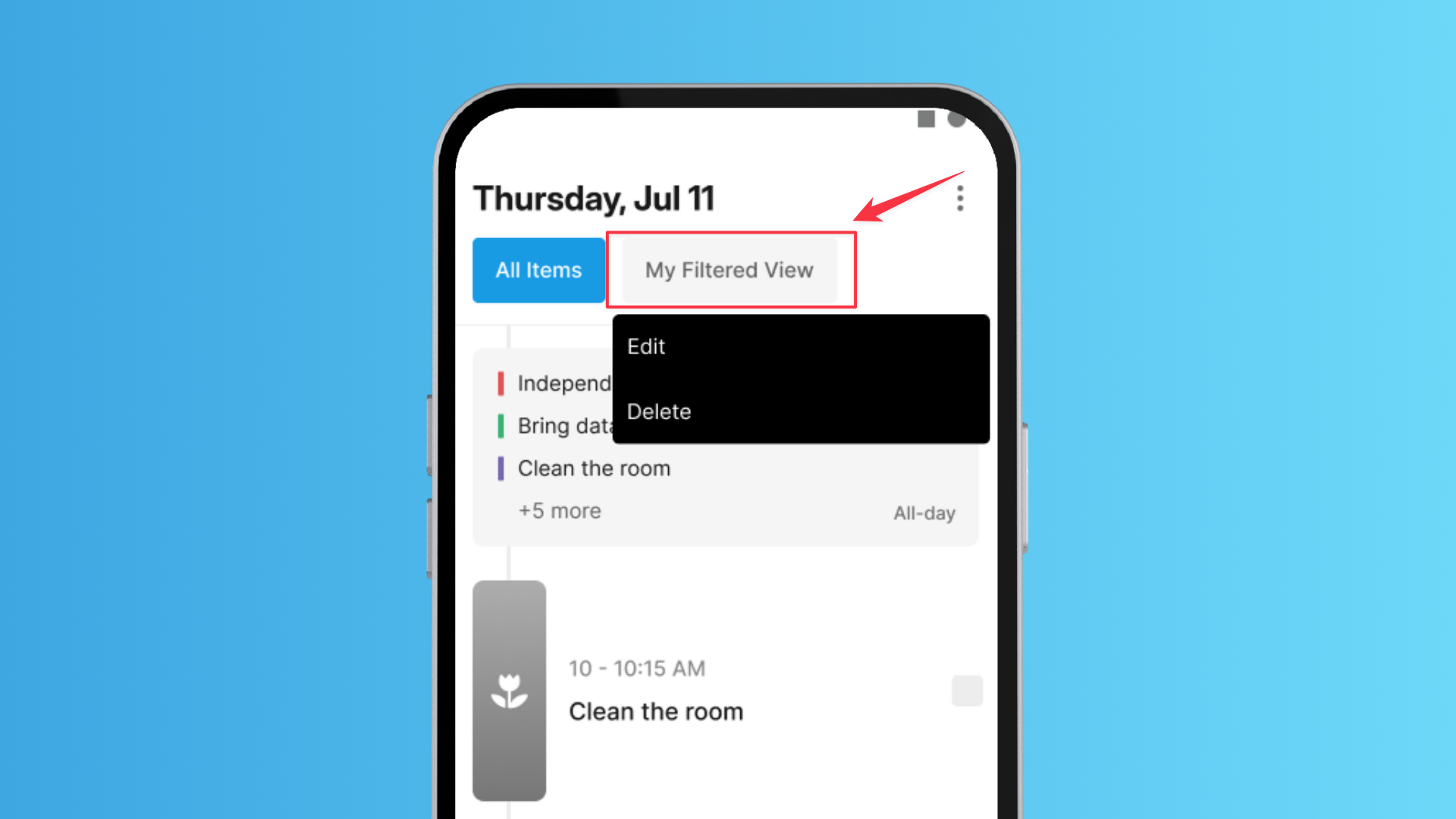
And you can see your new filter view on the horizontal bar above the timeline view. You can take a long press on it to Edit or Delete later.
Was this helpful?
Still need help? Share an idea