Create a task (web & desktop version)
Learn how to create and customize tasks using the website version
Written By Minh Thư
Last updated Over 1 year ago
Create a task for a date
To create a task for a specific day:
Go to Timeline view on the website app
Navigate to the day using the Calendar at the bottom of the left sidebar
On the timeline of the day, click and drag to choose the time range of the task
Go to the right sidebar and configure the task's settings, including:
Enter the task's Name and get icon suggested, you can change icon and color later
Click to choose Date from Calendar picker
For Start time, Duration, and Repeat, write to get AI suggestion
Click to choose Reminders options
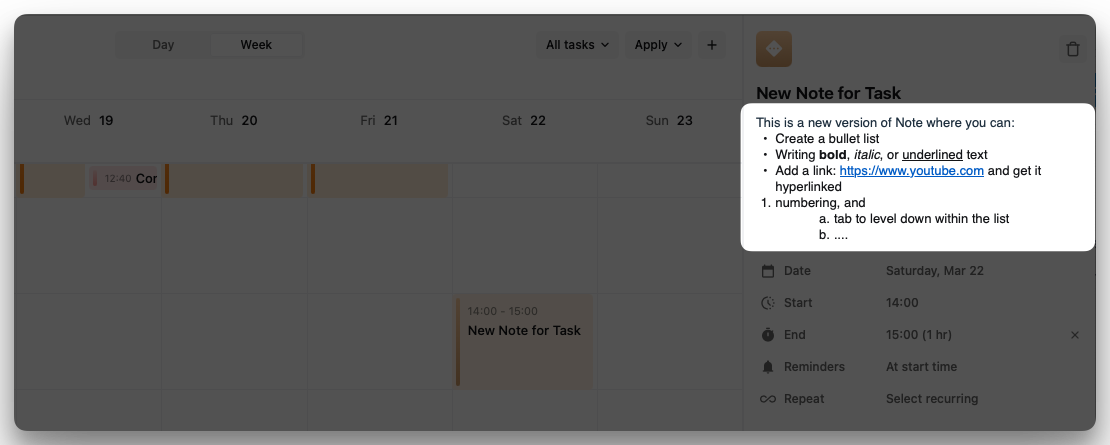
Add Note under the name of your task, it can be the descriptions or any important things about the tasks that you want to keep in your mind.
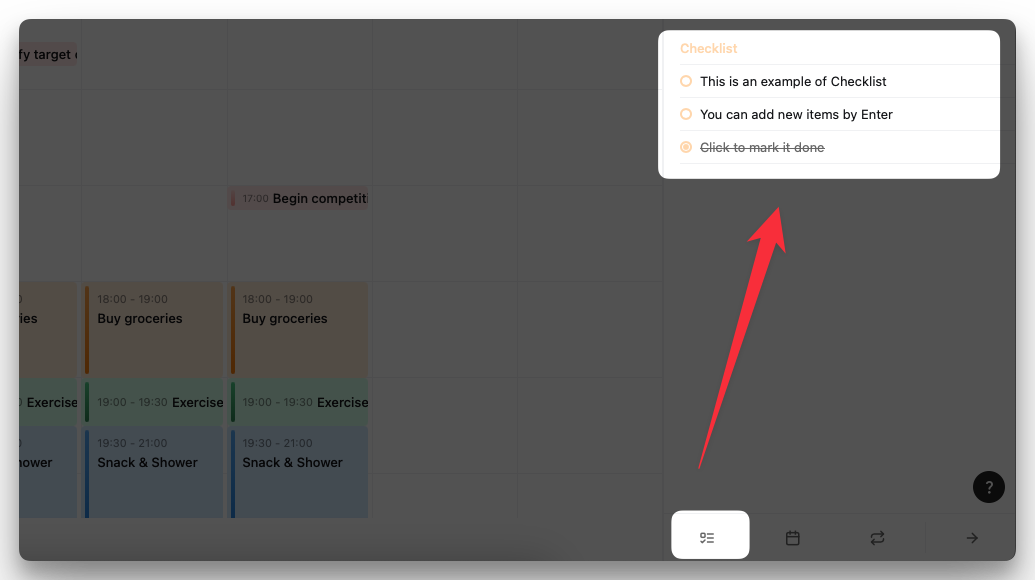
Add Checklist for sub-tasks
Create a task without a date
You may have a task you would like to do, but you are not sure about the date to schedule it yet. The approximate time is just this week, next week, or this month, and next month.
Follow the steps below to save it so you will never miss it:
On the left sidebar, choose Week, Month, Year, or Someday
Week: your tasks are estimated by week like week 45, and week 44 of the year 2024
Month: your tasks are estimated to be done by a specific month, but have no specific date or week yet.
Year: your tasks are estimated to be done by a specific month, but have no specific date, week, or month yet.
Someday: your tasks are still planned, but you don't know exactly when you will do it yet.
Hover your cursor to a column and click, then press Space
Write down the task and press Enter to save it into the list of the column
Edit a task
To edit a task:
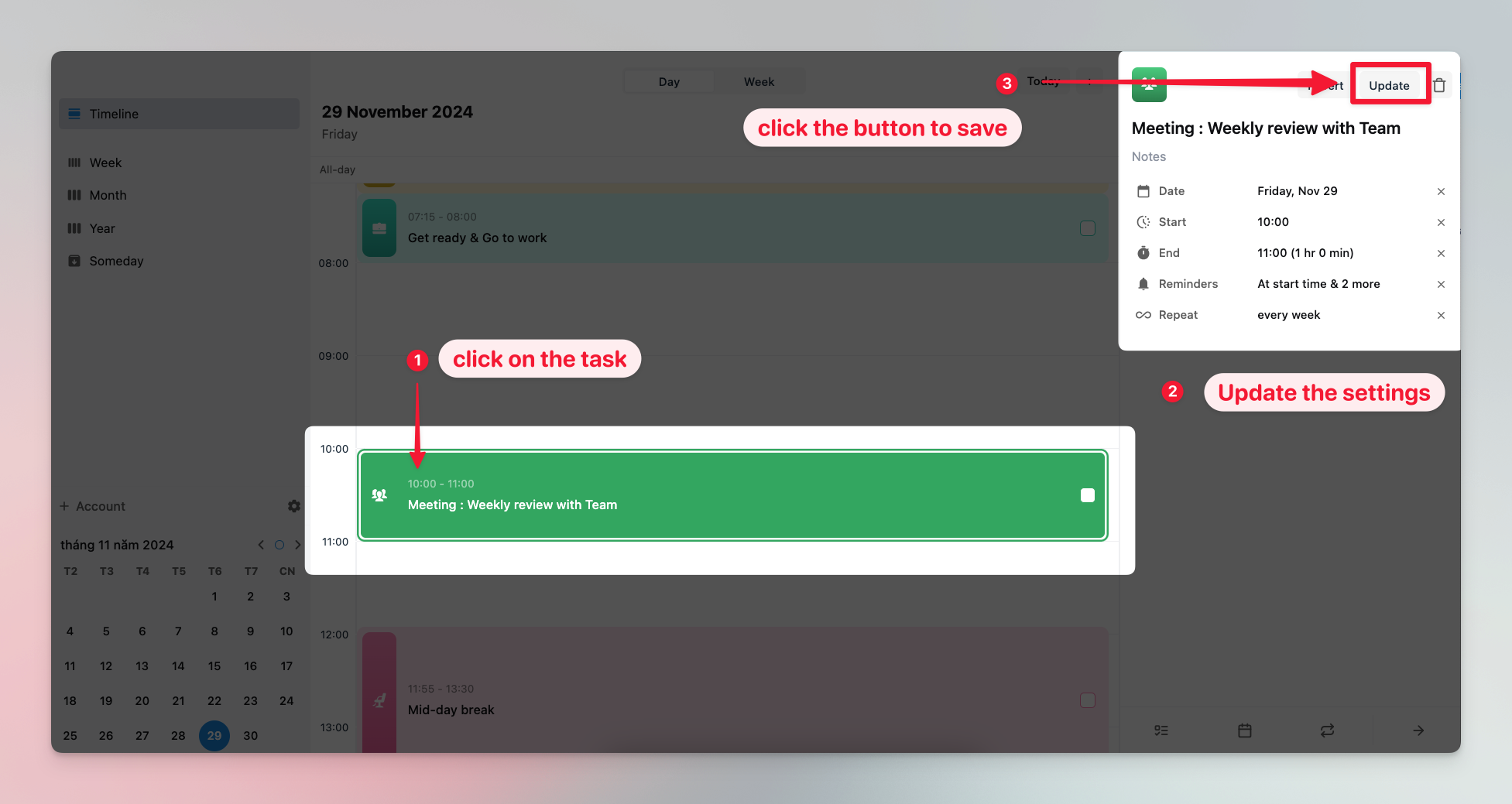
Click the task
Configure the settings of the task on the right sidebar
Click the Update button to save your changes
For the task with repeat, confirm if you want to:
Update This Task Only: Save the changes for the task on the current day only.
Update All Future Tasks: Save the change for this task on the current day, and apply to its occurrence in the future.
Update All Tasks: save the change to all occurrences of the task since the start date
Note: On the Week, Month, Year, and Someday view, you need to double-click on your tasks to open the settings.
Move a task
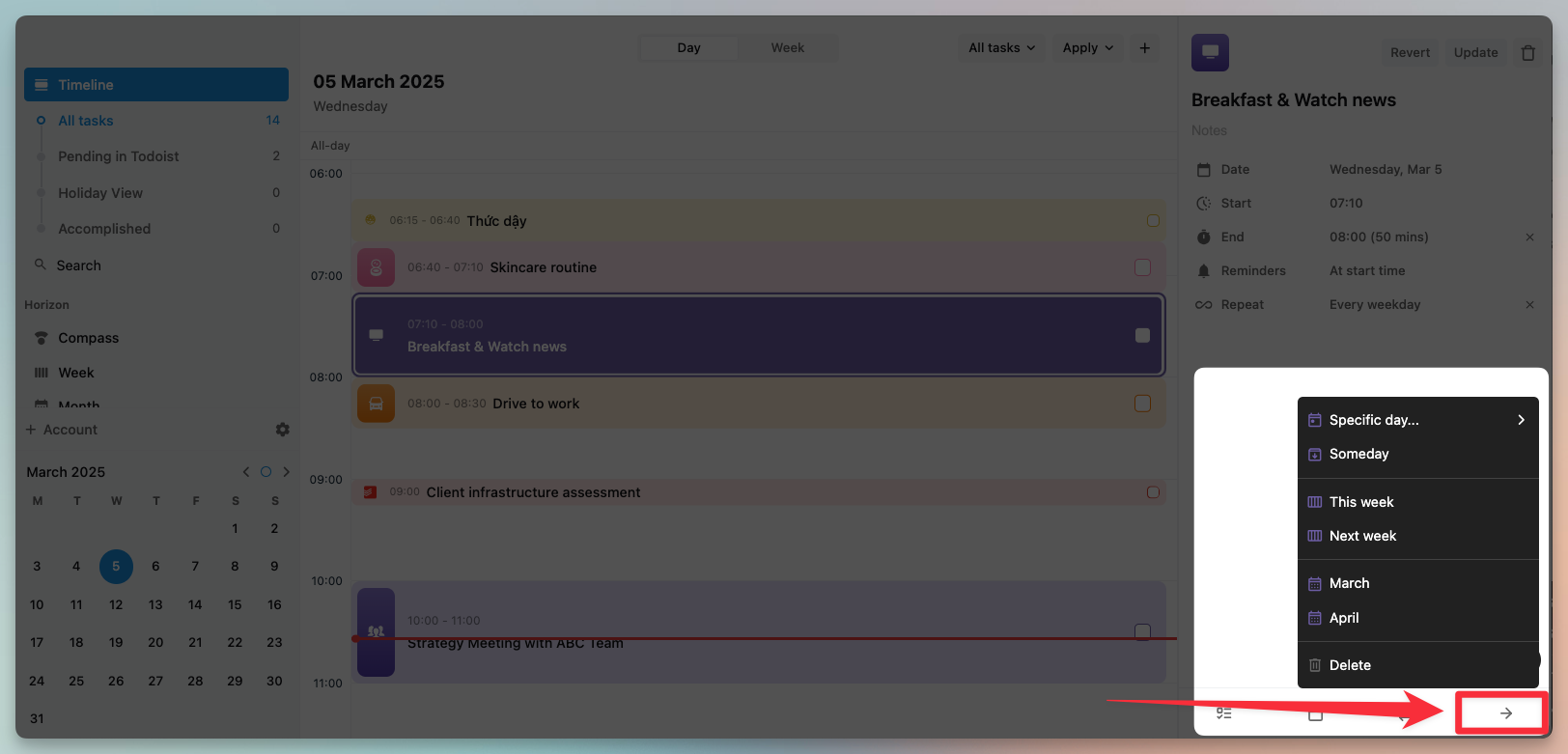
If there is one task that you may not complete it within a day as scheduled yet, you can re-schedule it or move it to one of the horizon's views for later planning. Follow these steps:
click on the task from the timeline's view
click the → button near the bottom corner on the right
choose a re-schedule option
Delete a task
To edit a task:
Click the task
On the right sidebar, click the Trash Bin button to delete your task
For the task with repeat, confirm if you want to:
Delete This Task Only: delete the task on the current day only.
Delete All Future Tasks: delete the task on the current day, and its occurrence in the future.
Delete All Tasks: delete all occurrences of the task since the start date
Was this helpful?
Still need help? Share an idea