Create a day template (phone version)
Schedule templates are powerful tools that help you quickly set up your ideal day. Learn how to create and use day templates to streamline your daily planning.
Written By Minh Thư
Last updated Over 1 year ago
What are Day Templates?
Day templates are pre-designed daily schedules that you can reuse whenever needed. They help you maintain consistency in your daily routine and save time on repetitive planning.
Limitations
Before creating a template, please note:
Only non-recurring tasks can be included in templates
Tasks synced from other apps (like Google Calendar or Apple Reminders) cannot be part of the templates
Create a day template
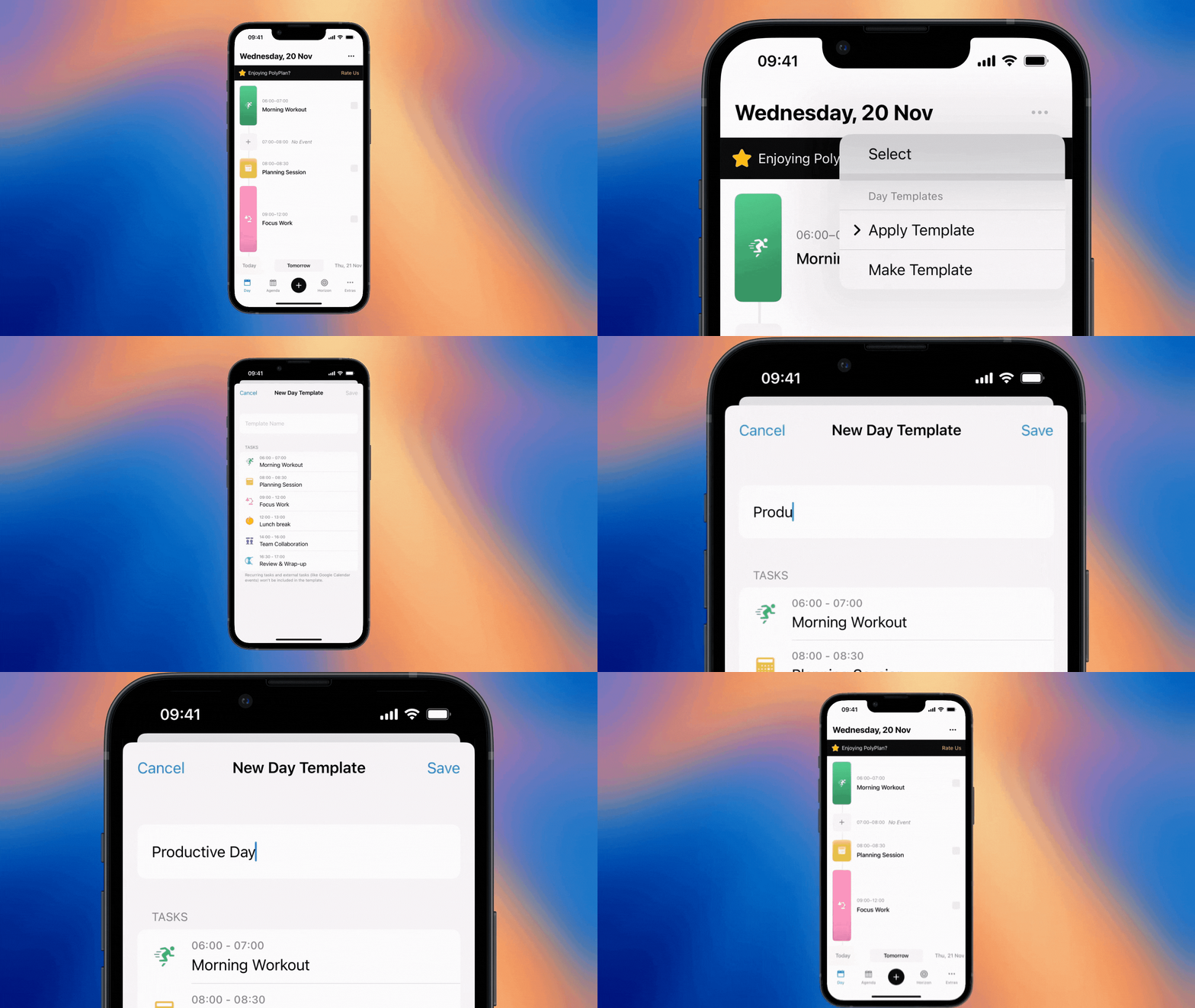
On the main daily view, navigate to an ideal day which includes all the tasks you want in your template. Make sure that you arrange the tasks with appropriate times and durations
Locate the three-dot menu in the top right corner, tap on it then select "Make Template"
In the pop-up to create a new day template, enter a descriptive name for your template
Tap Save
Apply a template to a day
To apply a day template to a day:
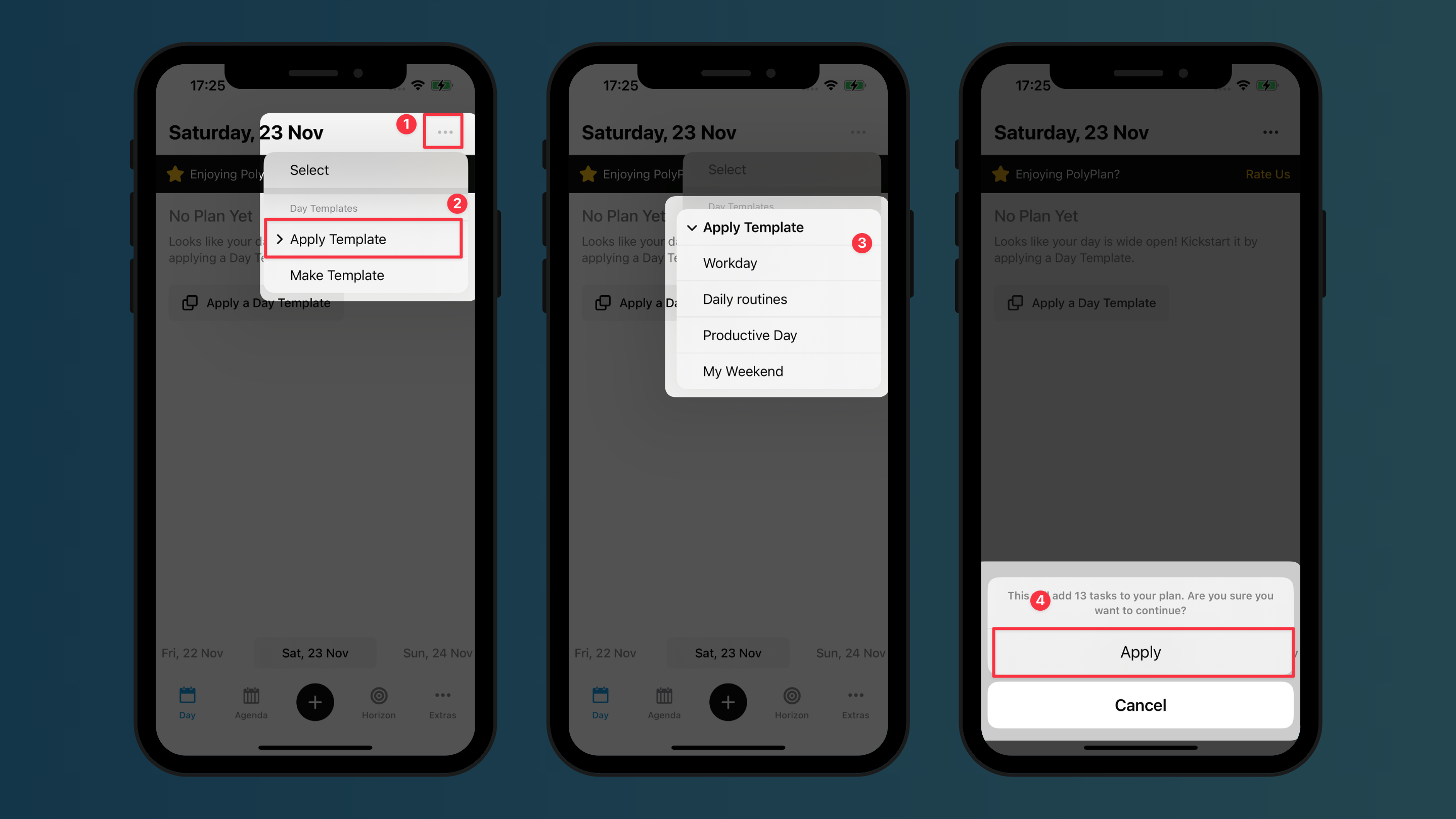
Go to the timeline view of the day
Tap on the 3-dot menu button on the top right corner
Select “Apply Templates”
Choose a template
For the confirmation, tap Apply
Best practices
Create multiple templates for different types of days (e.g., workday, focus day, weekend)
Use clear, descriptive template names
Keep templates simple and focused, start with your most important tasks when creating templates
Leave buffer time between tasks for flexibility, and include breaks and transition times as well.
Don't overpack your templates – leave room for unexpected tasks
Review and update templates periodically
Example of templates
Productive Workday Template
Morning Workout (6:00 AM - 7:00 AM)
Planning Session (8:00 AM - 8:30 AM)
Focus Work (9:00 AM - 12:00 PM)
Lunch Break (12:00 PM - 1:00 PM)
Team Collaboration (2:00 PM - 4:00 PM)
Review & Wrap-up (4:30 PM - 5:00 PM)
Focus Day Template
Morning Pages (7:00 AM - 7:30 AM)
Deep Work Block 1 (9:00 AM - 11:00 AM)
Exercise Break (11:00 AM - 11:30 AM)
Deep Work Block 2 (1:00 PM - 3:00 PM)
Reading & Learning (4:00 PM - 5:00 PM)
Manage Templates
See all templates
To see all the templates you have:
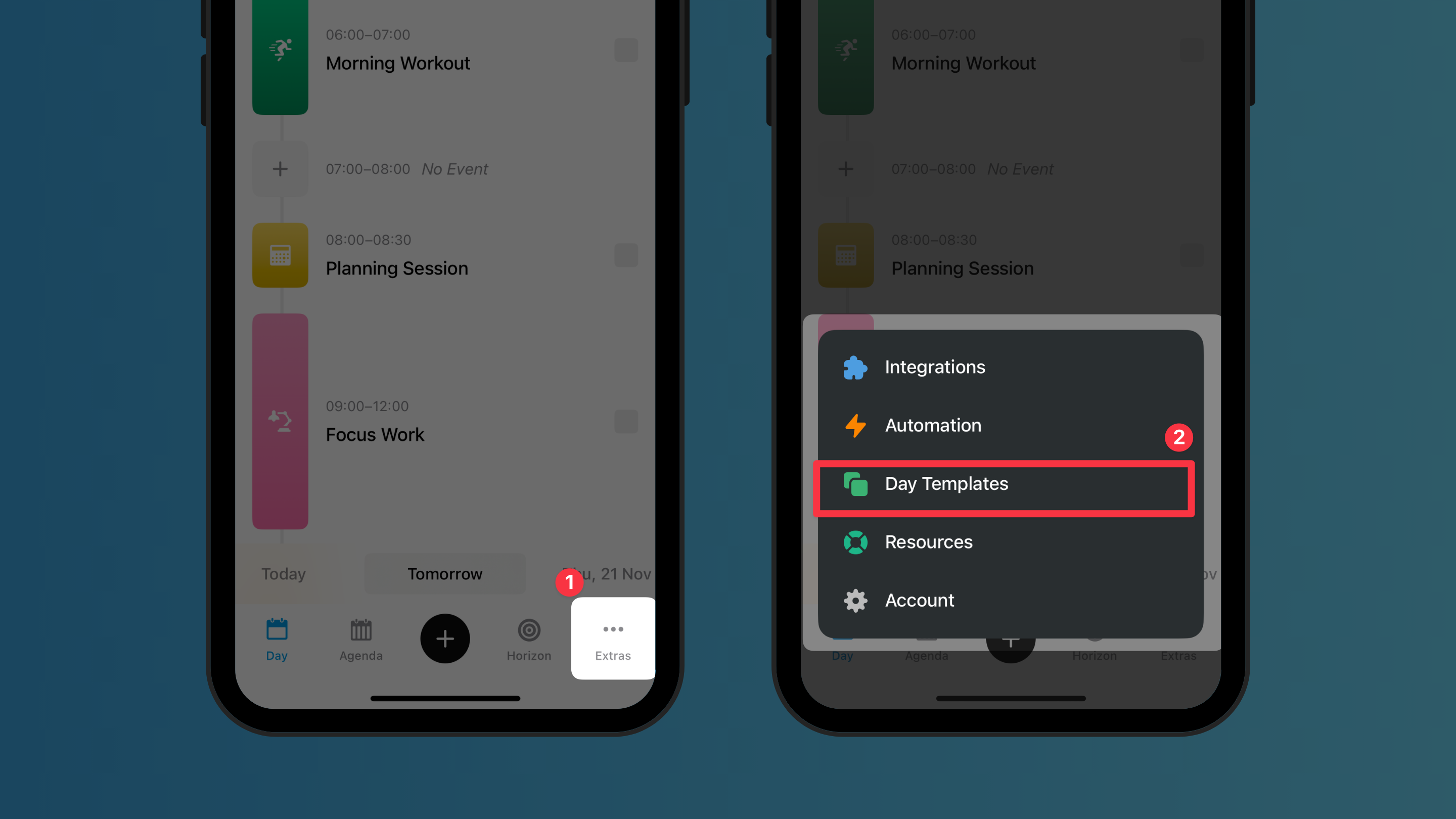
On the bottom menu bar, tap on the Extras tab
Choose Day Templates
Edit a template
Currently, you can change the template name and remove a task from the template:
Go to Extras tab > Day Templates
Find the template you want to modify
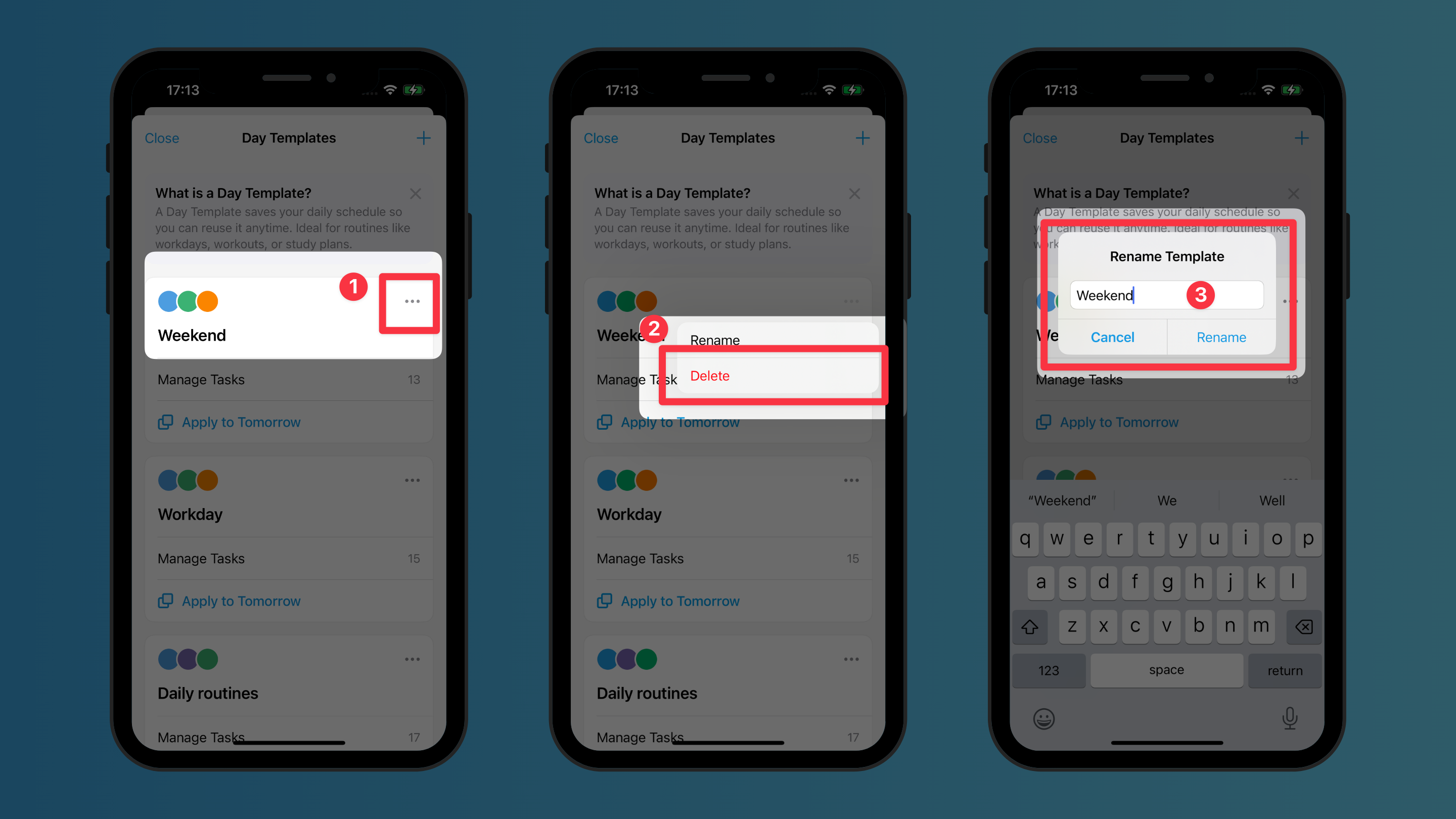
To change the template's name: Tap on the 3-dot menu button > Rename, and change the name of your template
To add more tasks to your template: Tap on Manage tasks > tap on round + button near the bottom right corner

To edit tasks to your template: Tap on Manage tasks > tap on the task you want to edit
To remove a task from the template: Tap on Manage tasks > tap on the round x button on the right of the task

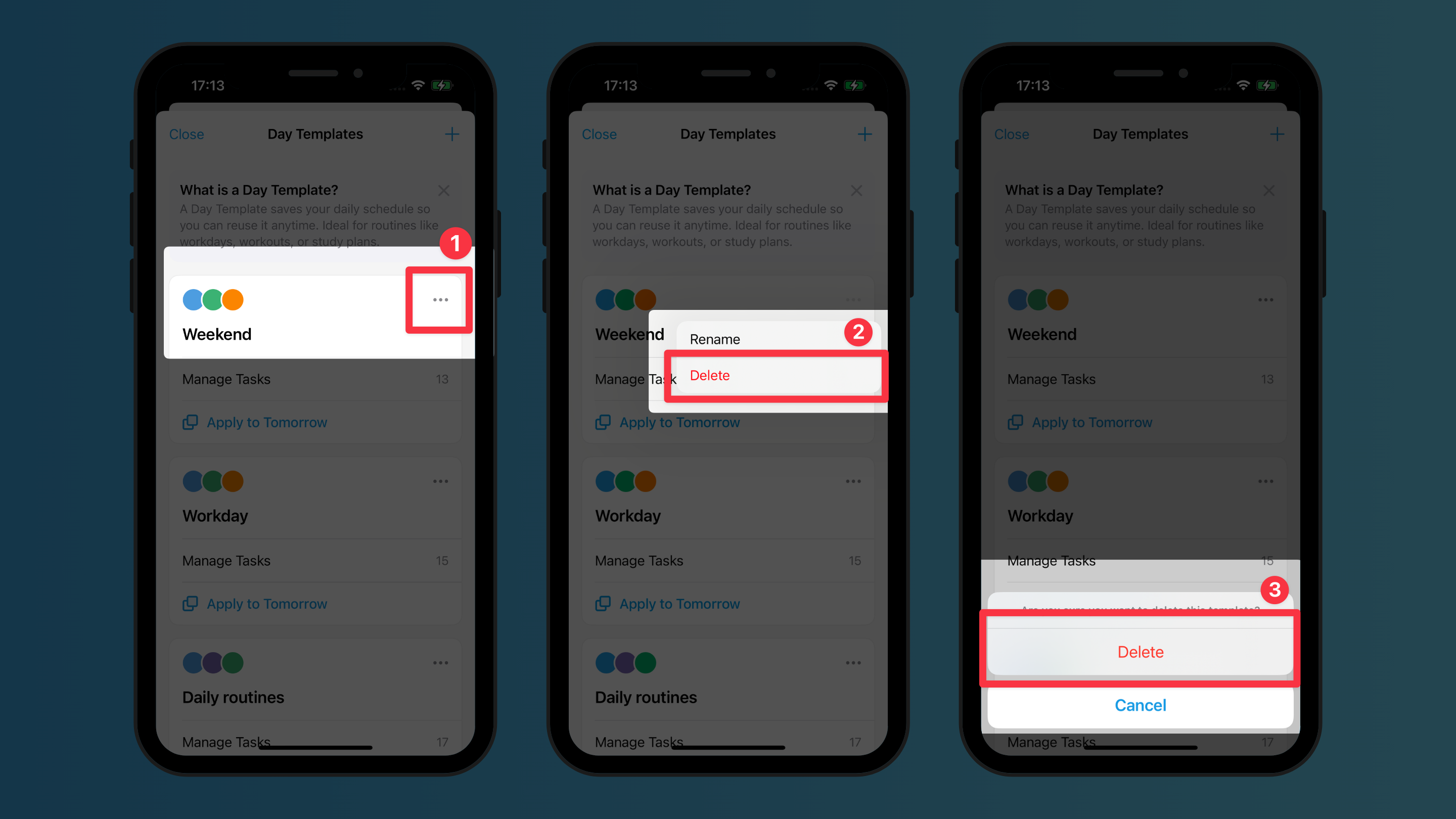
Delete a template
Go to Extras tab > Day Templates
Find the template you want to modify
Tap on the 3-dot menu button > Delete
On the confirmation pop-up, tap Delete again.
Common Questions
Can I combine multiple templates?
Yes, you can apply several templates for a calendar day.
Will templates update automatically if I change the original day?
No, templates are static once created. You'll need to create a new template to save any changes.
Can I apply a template to multiple days at once?
In Extras > Automation, you can configure the app to automatically apply a day template to each day in a week for you. Then every day, by your wake-up time, your day is already prepared with the tasks in the template.
Was this helpful?
Still need help? Share an idea