Learn about Task View
Written By Minh Thư
Last updated Over 1 year ago
Timeline: Managing Your Daily Schedule
The Timeline View helps you focus on immediate and short-term tasks through distinct perspectives:
Day view
Days view (on Web & Desktop app) or Agenda View (on Mobile app)
Day View
Stay focused on your immediate priorities with the Day View, which presents a detailed schedule of your tasks for today. This view helps you stay on track with your daily commitments and manage your time effectively.
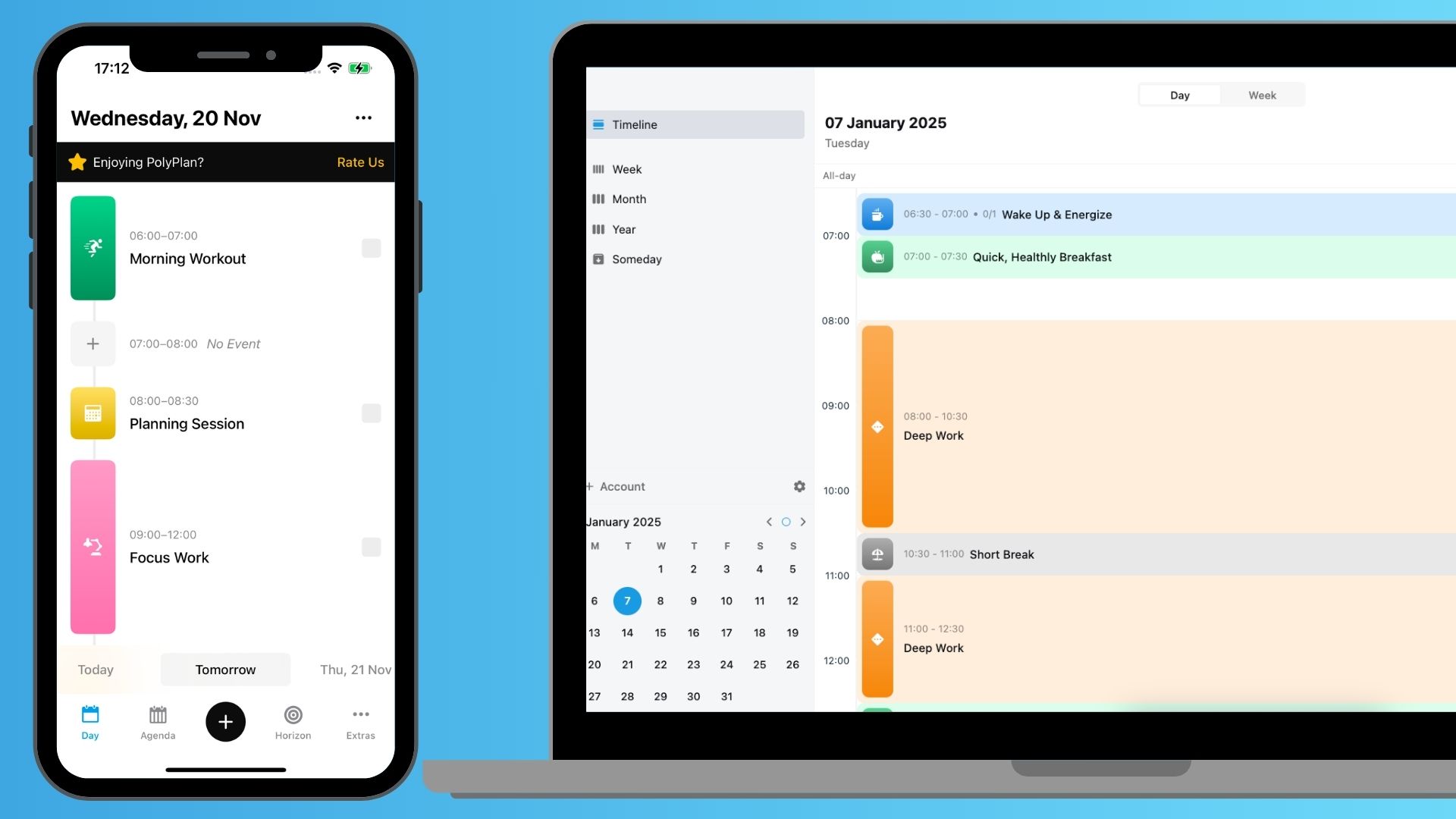
Days View (Desktop & Web)
When using the desktop or web application, you'll have access to a comprehensive overview of your several days.
On the horizontal date bar, choose a date range. You can see your tasks spread across different days, making it easier to balance your workload and plan.
The view on the schedule of several days gives you a bird's-eye view of your commitments, helping you identify busy periods and available time slots.

Agenda View (Mobile)
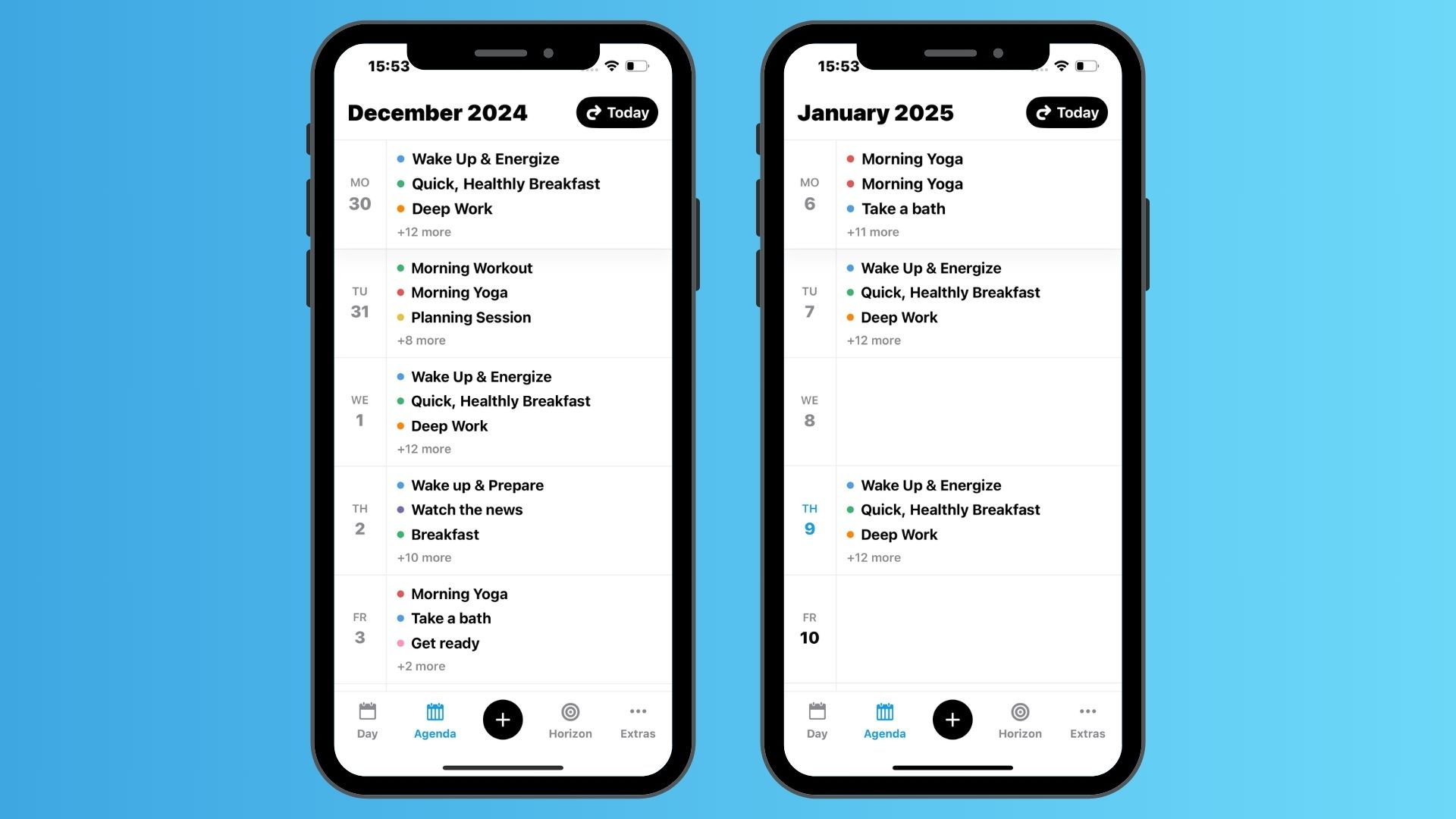
When you're on the go, the mobile-optimized Agenda View lets you smoothly scroll through your daily schedules. Simply scroll up or down to navigate between different days and check your tasks wherever you are.
Horizon: Planning for Your Future
Use the Horizon View for tasks that don't have specific dates but fit within broader time frames. This flexible planning system includes several sub-views, including:
Compass View
Week View, Month View, Year View
Someday View
Compass view
The Compass view serves as your strategic guide, helping you align your short-term actions with your longer-term goals. It creates a clear chain of purpose where:
This Year: Set your big-picture goals and direction for the year. These yearly goals guide and inform your monthly objectives
This Month: Break down your yearly goals into monthly objectives. Your monthly objectives determine what you need to focus on each week
This Week: Plan your immediate actions based on your monthly objectives. our weekly tasks are directly connected to achieving your monthly and yearly goals
This hierarchical structure helps you understand the "why" behind each task. When you look at your weekly tasks, you can trace them back to your monthly objectives, which in turn support your yearly goals. This creates a clear line of sight from your daily actions to your long-term vision.
Week view
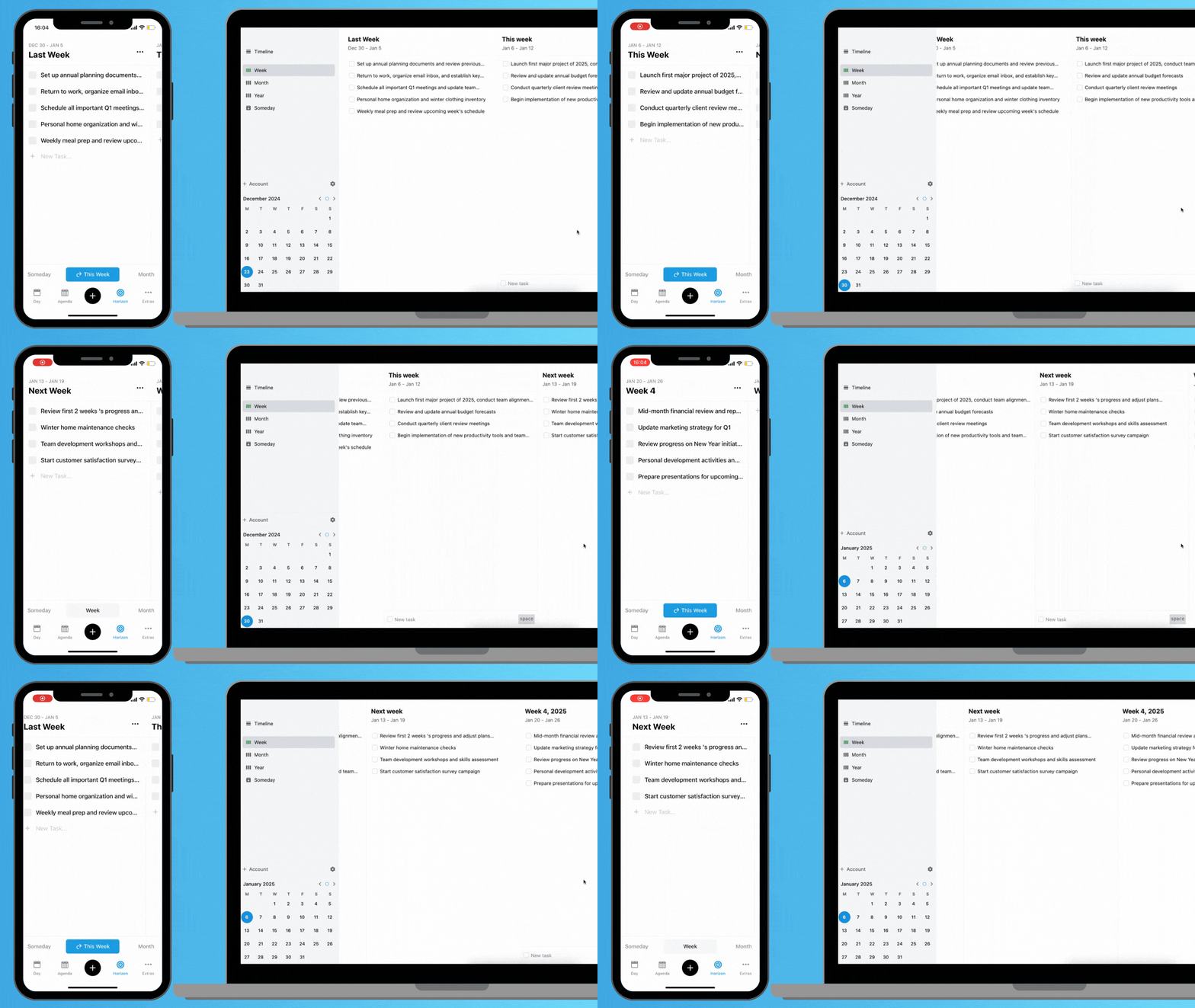
Organize your tasks by calendar weeks throughout the year (Week 1, Week 2, etc.). This view is particularly useful when you're project planning and breaking down larger goals into weekly chunks.
Month View
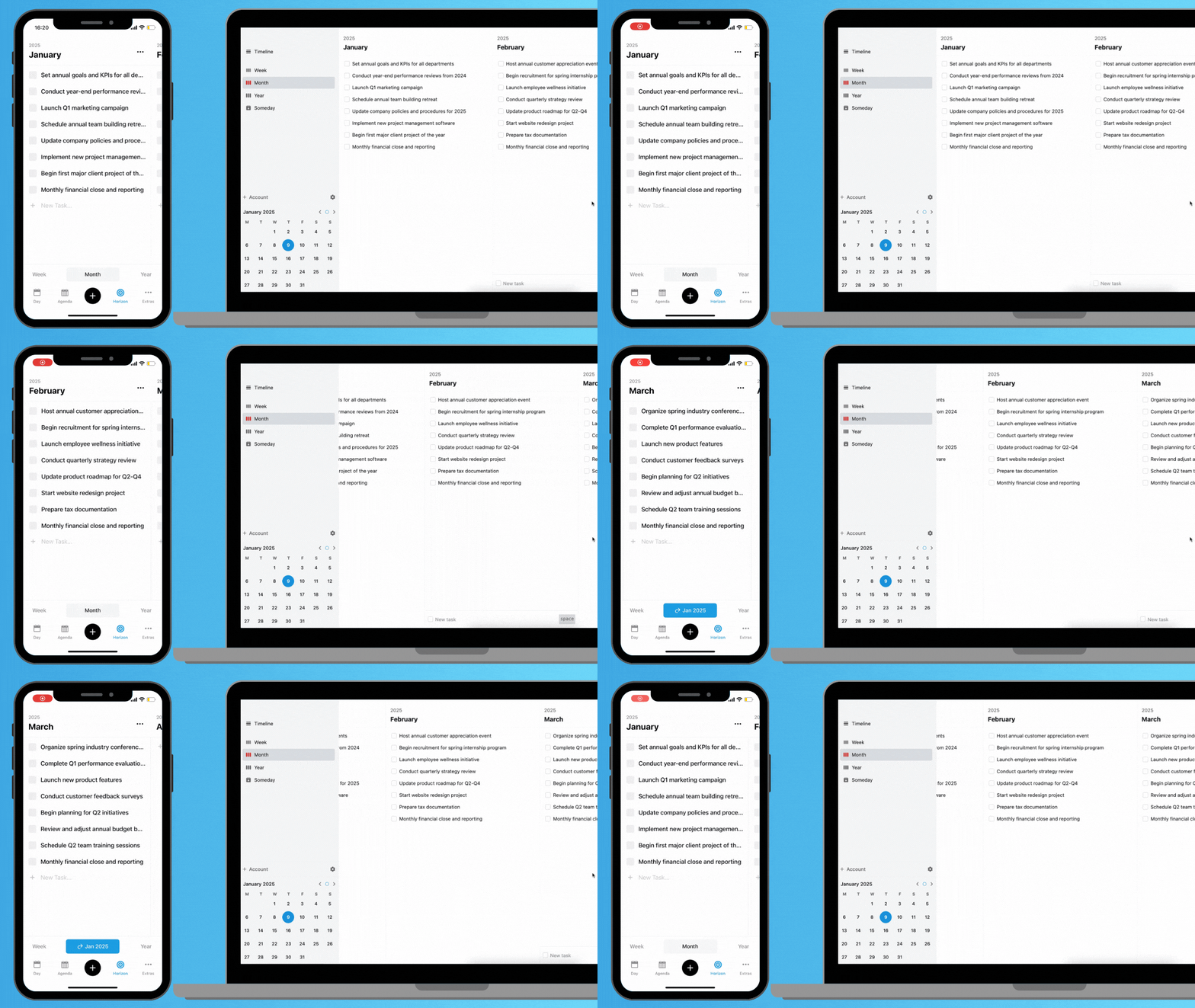
Arrange your tasks by calendar months for a medium-term perspective. This view helps you distribute your workload across months and manage monthly recurring tasks or goals.
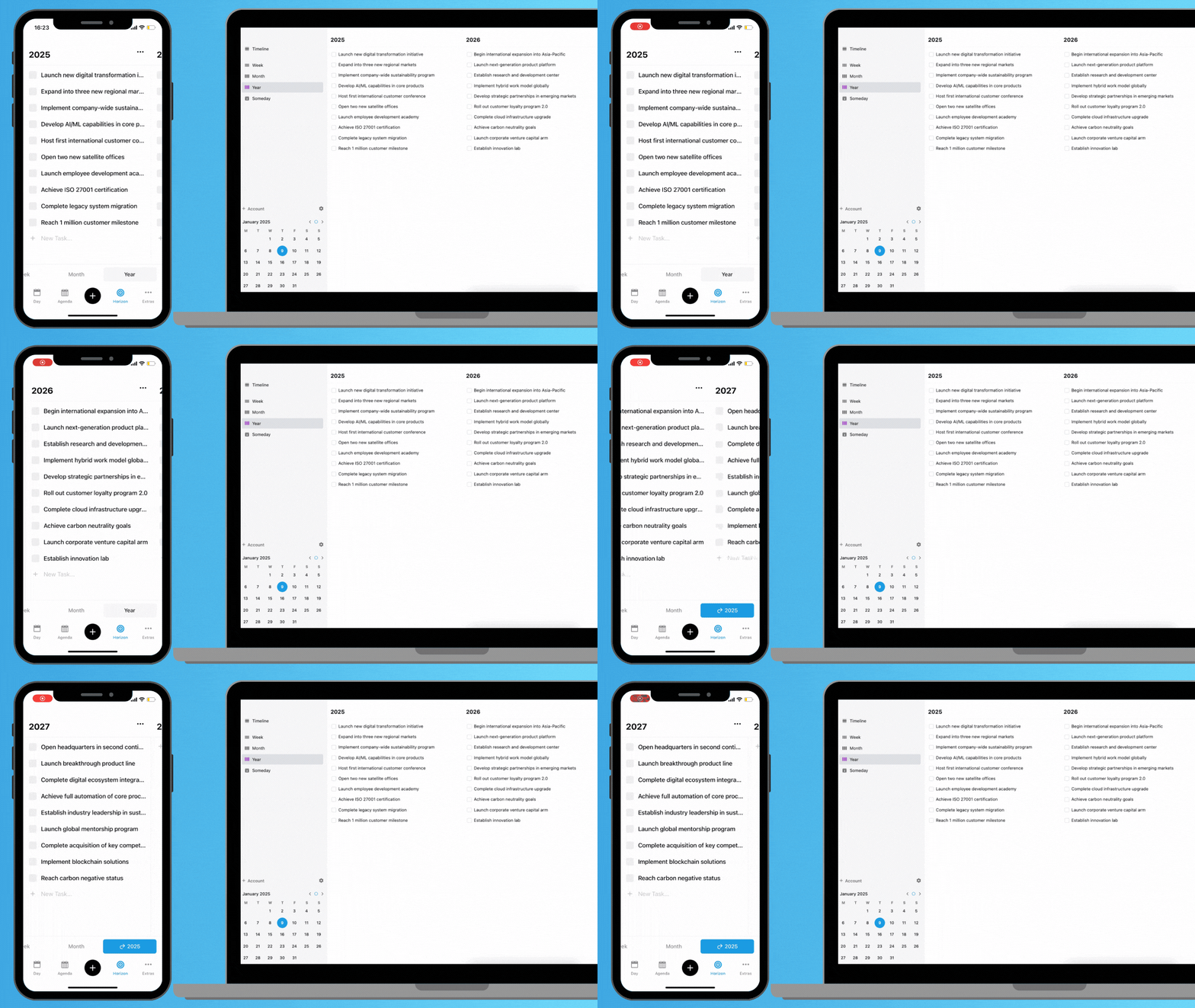
Year view
Perfect for your long-term goals and major projects, the yearly view lets you organize tasks by year (2024, 2025, etc.). Use this for your strategic planning and setting long-term objectives.
Someday view
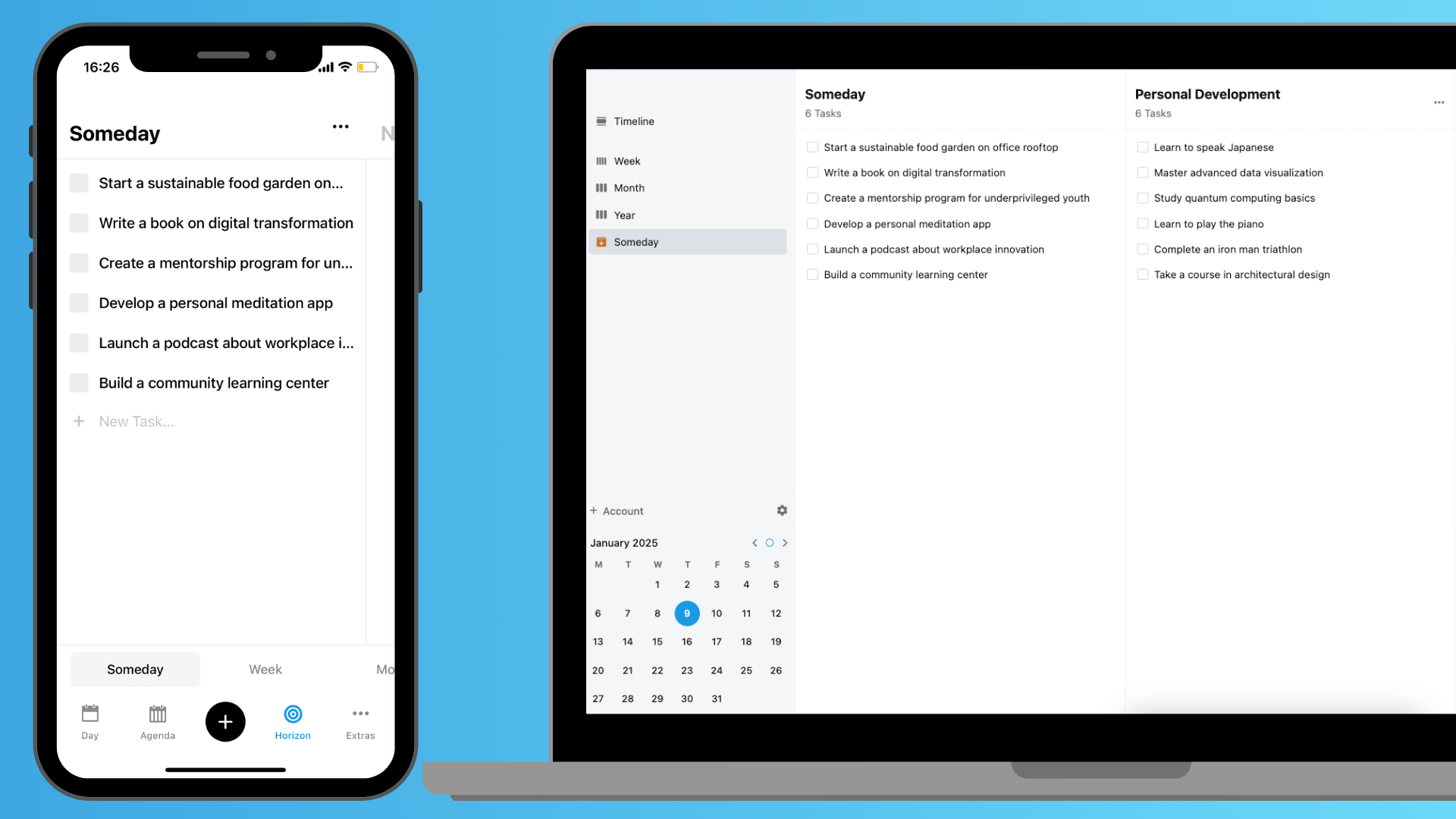
Use the Someday view as your collection point for ideas and tasks that don't have a specific timeframe. You can:
Create your custom categories beyond the default "Someday" category
Store your task ideas for future consideration
Keep track of your potential projects or initiatives
PolyPlan makes it easy to manage your tasks across different views:
Your tasks are independent across different views
You can easily move tasks between views:
Use drag-and-drop functionality on desktop and web versions
Modify task settings to rearrange them
Seamlessly transition between different time horizons
This flexibility ensures your task management system can evolve with your changing needs and priorities.
Was this helpful?
Still need help? Share an idea